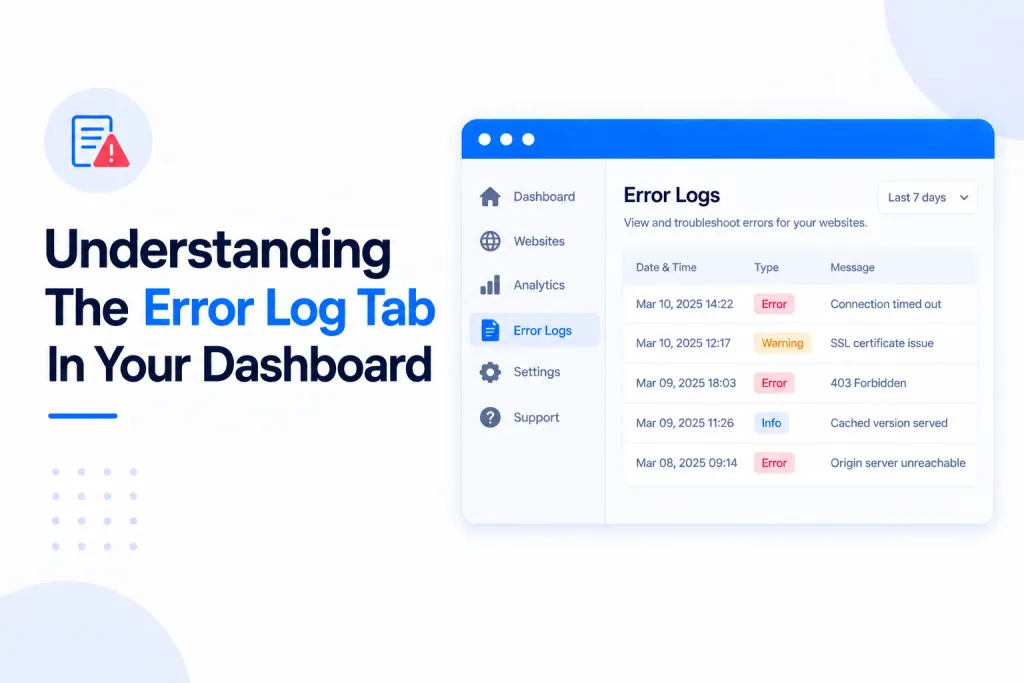
The Error log tab shows the recent PHP and web-server errors for a domain, so you can find the cause of a problem and fix it yourself — without opening a support ticket or asking us to pull the logs for you. If a site goes down or starts misbehaving, this is the first place to look.
💡 Heads-up
The log covers up to the last 7 days (less on a busy site, as the server only keeps a limited amount of log). File paths are shown from your site’s own folder (/wp-content/…) and any passwords or other private values are hidden automatically.
What the error log shows you
The Error log tab lists the most recent errors your site has thrown, newest first. Identical errors are grouped together with a count so a single repeating issue doesn’t bury everything else. Each entry shows the error type, the message, the file it came from and when it last occurred — enough to point you straight at what needs fixing.
Opening the error log
Step 1 — Open the site from your dashboard
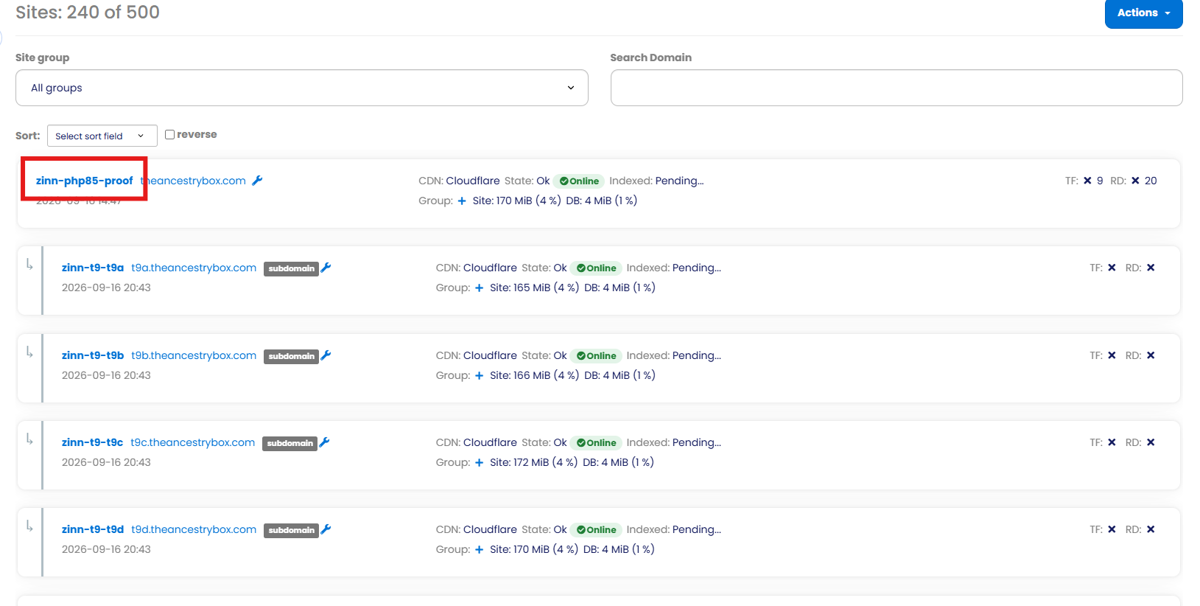
In your main dashboard, click the site name of the domain you want to check. This opens the main overview screen for that domain.
Step 2 — Open the Error log screen
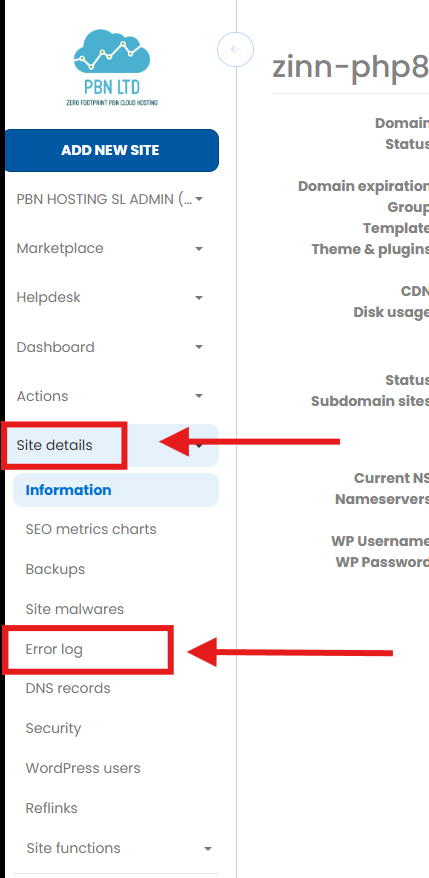
In the left-hand menu you’ll find all the tools and logs for that domain. Under Site details, click Error log to open the error log screen.
Refreshing and filtering the log
Step 3 — Refresh, filter and read your errors
Click Refresh to run a fresh scan of the log. Tick Fatal and parse errors only if you just want the errors that actually take a site offline and want to hide the routine warnings and notices. You can also see when the most recent scan ran and the date of the oldest entry still on file. Below that is the log itself, with each error listed newest first.

What the different error types mean
Not every entry in the log means your site is down. It helps to know which types are serious and which are just informational:
| Type | What it means | Stops your site? |
|---|---|---|
| Fatal | A critical error that halts PHP and prevents the page loading. | Yes |
| Parse | Broken PHP syntax the server can’t read, usually from a bad edit or plugin. | Yes |
| Warning | Something went wrong but the page still loads — worth reviewing. | No |
| Notice | A minor, non-critical message. Safe to ignore in most cases. | No |
✅ Quick summary
The Error log tab lists the recent PHP and server errors for your site so you can diagnose and fix issues yourself. Fatal and Parse errors take a site offline; warnings and notices don’t. The log covers up to the last 7 days, with private values hidden.