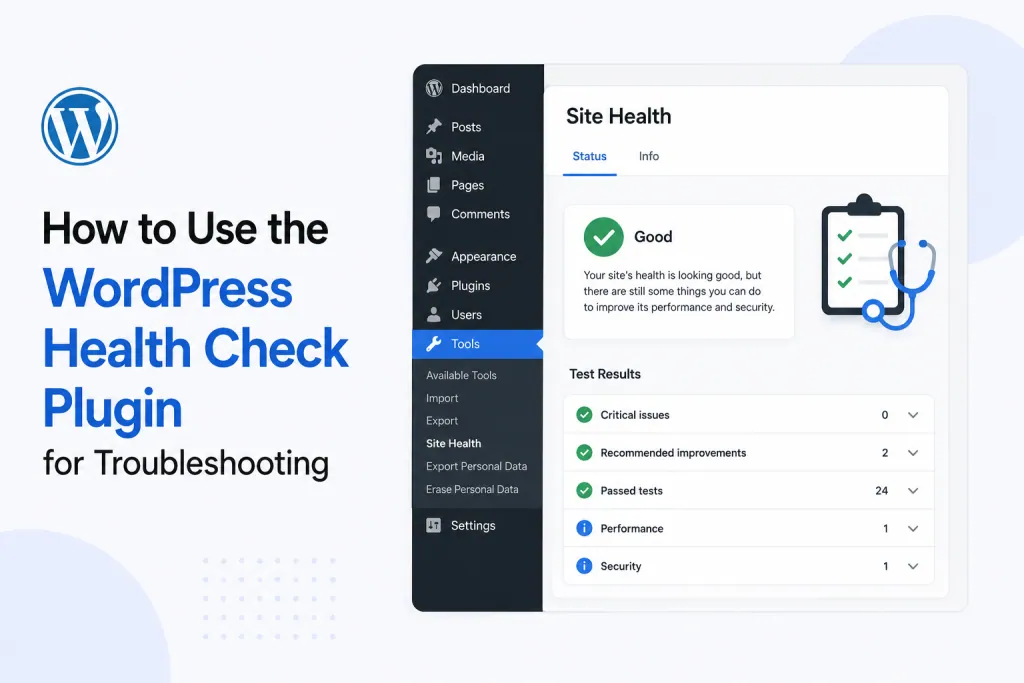
If your WordPress site is misbehaving — a broken page, a weird layout glitch, a slow admin area, a feature that won’t work — and you suspect a plugin or theme conflict, the WordPress Health Check & Troubleshooting plugin is one of the cleanest, safest ways to diagnose it. Unlike disabling all your plugins (which would break the site for your visitors), Health Check has a built-in Troubleshooting Mode that creates a private clean session just for you — your visitors keep seeing your normal site, while you investigate the issue with all plugins / themes effectively switched off.
This guide walks you through exactly how to install it, run a Site Health check, enter Troubleshooting Mode, find the conflict, and get back to normal — in plain English, no jargon.
💡 Heads-up: on PBN LTD you don’t need FTP, SFTP or SSH for any of this. Everything is done from inside your WordPress admin (/wp-admin/) or, if you can’t log in, from your dashboard’s File Manager (Site Functions → File manager).
📁 Quick vocab (we use these a lot):
- Site Health = a screen that’s built into WordPress core (since version 5.2). You’ll find it at Tools → Site Health. It checks your WordPress install for common issues and shows them as Critical / Recommended / Good.
- Health Check & Troubleshooting plugin = an optional, free plugin from the WordPress.org team that extends the built-in Site Health screen with a powerful Troubleshooting Mode. That’s the bit we really care about in this guide.
- Troubleshooting Mode = a special private session where, just for the logged-in admin, all plugins are temporarily disabled and the theme is switched to a default one. Your visitors are not affected — they still see your normal site.
- Plugin conflict = two (or more) plugins fighting with each other, or one plugin clashing with your theme or with WordPress itself. Causes white screens, weird layouts, broken admin pages, etc.
📑 What’s in this guide
- 🧠 When should I use Health Check (and when shouldn’t I)?
- 📥 Step 1 — Install the Health Check plugin
- ⚙️ Step 2 — Run a Site Health check
- 🧪 Step 3 — Enter Troubleshooting Mode
- 🔍 Step 4 — Isolate the problem plugin or theme
- 🔁 Step 5 — Exit Troubleshooting Mode
- ⚠️ Important — PBN LTD-specific warnings
- 🔒 What if I can’t log in to
/wp-admin/at all? - ❓ FAQs
🧠 When should I use WordPress Health Check (and when shouldn’t I)?
Health Check & Troubleshooting Mode is brilliant when you suspect a problem is caused by a plugin, theme, or WordPress configuration — but you don’t want to take your site down for visitors while you investigate.
| Your situation | Use Health Check? | Or use… |
|---|---|---|
You can log in to /wp-admin/, but something on the front end (or in admin) is broken / weird | ✅ Yes — the easiest, safest first step | — |
| You think a recent plugin update has broken something | ✅ Yes — perfect use case | — |
| You want to test changes without affecting visitors | ✅ Yes — Troubleshooting Mode is private to you | — |
Your whole site is showing a 500 / white screen and /wp-admin/ also fails | ❌ No — you can’t install plugins | Disable plugins via File Manager: Plugin/Theme Conflicts guide |
| You’re seeing a 500 Internal Server Error | ⚠️ Maybe — only if /wp-admin/ still loads | How to Fix a 500 Internal Server Error |
| You suspect a domain / DNS / hosting issue, not a WordPress one | ❌ No | Domain Status States |
📥 Step 1 — Install the WordPress Health Check plugin
- Log in to your WordPress admin at
https://yourdomain.com/wp-admin/(or use the One Click Login button from your PBN LTD dashboard). - In the left-hand menu, go to Plugins → Add New.
- In the search box (top right), type Health Check & Troubleshooting.
- The plugin you want is by “The WordPress.org community” — click Install Now, then Activate.
💡 The plugin is free, made by the official WordPress.org core team, and doesn’t send your data anywhere. It’s safe to leave installed long-term, or you can deactivate / delete it once you’ve finished diagnosing.
⚙️ Step 2 — Run a Site Health check
Before jumping into Troubleshooting Mode, take 30 seconds to look at the Site Health screen. It often points straight at the issue.
- In
/wp-admin/, go to Tools → Site Health. - You’ll see two tabs: Status and Info.
The Status tab
This shows a list of automated checks, grouped into:
- 🔴 Critical issues — things that genuinely affect your site (e.g. PHP version too old, missing essential modules, scheduled tasks failing). Worth investigating.
- 🟠 Recommended improvements — things WordPress thinks could be better, but aren’t breaking anything. Often safe to ignore (e.g. some plugins flag harmless background tasks).
- 🟢 Passed tests — confirmation everything’s healthy.
💡 Don’t panic at orange warnings. “Recommended improvements” are often false alarms — for example, “REST API encountered an unexpected result” is commonly triggered by a security plugin or caching layer and doesn’t mean your site is broken.
The Info tab
A long, expandable list of technical details about your site: WordPress version, active theme & plugins, server settings (PHP version, memory limit, etc.), database info, and more. If you submit a support ticket, our team may ask for a copy of this — there’s a “Copy site info to clipboard” button at the bottom of the Info tab that makes this easy.
🧪 Step 3 — Enter Troubleshooting Mode
This is where the Health Check plugin really earns its keep. Troubleshooting Mode gives you a clean WordPress session — all plugins disabled and a default theme active — while your visitors continue to see your normal site.
- Go to Tools → Site Health.
- Click the Troubleshooting tab.
- Click Enable Troubleshooting Mode.
What happens once you click Enable:
- All plugins are deactivated for your session only.
- Your theme is temporarily switched to the latest default WordPress theme (e.g. Twenty Twenty-Four) — again, just for you.
- Your visitors carry on seeing your normal site, with all plugins and your real theme active. They notice nothing.
- A new toolbar appears at the top of your admin labelled “Troubleshooting Mode”, with options to enable / disable individual plugins for testing.
✅ This is the safest “deactivate all plugins” approach you can take on a live site. No downtime, no scary moments where your visitors see a half-broken homepage.
🔍 Step 4 — Isolate the problem plugin or theme
Now that you’re in Troubleshooting Mode (with everything disabled), it’s time to find the culprit.
- Visit the page / feature that was broken. Does the problem still happen?
- No — great, a plugin or theme was definitely the cause. Continue to step 2 to find which one.
- Yes — the issue isn’t a plugin or theme. It might be WordPress core, your
.htaccess, yourwp-config.php, or something on the server side. See How to Fix a 500 Internal Server Error for further steps.
- From the Troubleshooting Mode toolbar at the top of your admin, re-enable plugins one at a time. After each one, refresh the broken page and check whether the issue has come back.
- The moment the problem reappears — you’ve found the conflict. The plugin you just re-enabled is the culprit (or at least part of it — see the tip below).
- Optionally, also re-enable your real theme from the Troubleshooting Mode toolbar to confirm it’s not a theme-only or theme + plugin combo issue.
💡 Sometimes the conflict is between two plugins. If individually disabling Plugin A and Plugin B both make the issue go away, but only enabling one of them on its own works fine — the conflict is between them. Try keeping the more essential plugin and look for an alternative to the other.
Once you’ve identified the problem plugin, your options are:
- Deactivate it permanently if you don’t actually need it.
- Update it — there may already be a newer version that fixes the issue.
- Roll back to an older version if the conflict started right after an update (the WP Rollback plugin can help).
- Contact the plugin’s developer with details from the Site Health “Info” tab — the more info, the better the support.
- Switch to an alternative that does the same job without conflicting.
🔁 Step 5 — Exit Troubleshooting Mode
When you’re done:
- In the Troubleshooting Mode toolbar at the top of your admin, click Disable Troubleshooting Mode.
- Your admin session goes back to normal — all the plugins and themes you had active before Troubleshooting Mode are re-enabled exactly as they were.
- Any plugins you deactivated permanently while inside Troubleshooting Mode stay deactivated, which is what you want.
💡 If the “Disable Troubleshooting Mode” button isn’t visible (rare) — just log out and log back in. The Troubleshooting session is tied to your login, so logging out clears it.
⚠️ Important — PBN LTD-specific warnings
🚨 Do NOT permanently deactivate the PBN Login Helper plugin.
This plugin is what makes the One Click Admin Login (SSO) button work from your PBN LTD dashboard. While you’re in Troubleshooting Mode, it’s perfectly fine for the helper plugin to be temporarily disabled inside your session — your visitors and the One Click Login itself are not affected. But if you choose “Deactivate” on it permanently from inside Troubleshooting Mode, the One Click Login button will stop working.
If you’ve already accidentally deactivated it, see One Click Admin Login (SSO) Not Working — How to Fix It to restore it.
💡 Other things to keep in mind on PBN LTD:
- Caching: if your site is behind Cloudflare or another CDN (most PBN LTD sites are), purge the CDN cache after disabling a problem plugin: dashboard → site → Site Functions → Purge CDN cache. Otherwise visitors may still see the old broken behaviour for a while.
- No FTP / SFTP / SSH needed: PBN LTD doesn’t offer them and you don’t need them for Health Check. The plugin works entirely from inside
/wp-admin/, and if you ever need to disable a plugin from outside WordPress, the dashboard’s File Manager handles that too. - Backups: if you’re about to deactivate / re-activate a lot of plugins, create a manual backup first from your dashboard → site → Site Functions → Create backup. It’s a 30-second insurance policy.
🔒 What if I can’t log in to /wp-admin/ at all?
Health Check is a plugin — so to use it, you have to be able to log in to install / activate it. If you can’t reach /wp-admin/, this isn’t the right tool.
Instead, you can do the same essential thing — temporarily disable all plugins — straight from File Manager, without logging in. Full step-by-step here:
- 🛠️ How to Resolve WordPress Plugin or Theme Conflicts — covers the manual approach (rename the
pluginsfolder, then rename it back, and reactivate one-by-one from inside WordPress). - 🚨 How to Fix a 500 Internal Server Error — if your whole site is throwing 500s and you can’t log in.
- 🔑 One Click Admin Login (SSO) Not Working — How to Fix It — if it’s specifically the One Click Login button that’s failing.
❓ FAQs
Will Troubleshooting Mode break my site for my visitors?
No — that’s the whole point. Troubleshooting Mode is private to your admin session. Visitors continue to see your normal site, with all your real plugins active and your real theme in use. It’s completely safe to use on a live site.
Is the Health Check plugin safe to install? Will it slow my site down?
Yes, it’s safe — it’s a free, open-source plugin made by The WordPress.org community (the official WordPress core team). It has no measurable impact on front-end performance for visitors. You can leave it installed or delete it after you’ve finished diagnosing — either is fine.
What’s the difference between Site Health and the Health Check plugin?
Site Health is the diagnostic screen that’s built into WordPress core (Tools → Site Health). Anyone with WordPress 5.2+ has it. The Health Check & Troubleshooting plugin is an optional add-on that extends that screen with the powerful Troubleshooting Mode — that’s the part that lets you test the site as if all plugins were disabled, without actually disabling them for your visitors.
Do I need FTP or SSH for this?
No. PBN LTD doesn’t offer FTP, SFTP or SSH — and Health Check doesn’t need any of them. It runs entirely from inside /wp-admin/. If you ever need to disable a plugin from outside WordPress (because you can’t log in), the dashboard’s File Manager covers that.
I logged out by accident — am I still in Troubleshooting Mode?
No. Troubleshooting Mode is tied to your logged-in admin session, so logging out automatically ends it. When you log back in, your admin returns to normal. (Any plugins you permanently deactivated from inside Troubleshooting Mode will stay deactivated, which is normal.)
The Site Health screen shows orange “Recommended” issues. Should I worry?
Usually no. Orange items are recommendations, not critical failures. Common false alarms include “REST API encountered an unexpected result” (often triggered by security plugins or caching) and “A scheduled event has failed” (often harmless background tasks). Focus on the red Critical items first.
Can I use Health Check if my site is showing a white screen / 500 error?
Only if you can still reach /wp-admin/. If both the front end and the admin are broken, you can’t install Health Check — you’ll need to disable plugins via File Manager instead. See How to Fix a 500 Internal Server Error and How to Resolve WordPress Plugin or Theme Conflicts.
Can I share the Site Health “Info” tab with support?
Yes, that’s exactly what it’s designed for. In the Info tab, scroll to the bottom and click Copy site info to clipboard, then paste it into your support ticket. It gives our team a complete technical snapshot of your site so we can diagnose faster.
🙋 Still stuck? Submit a support ticket
If you’ve worked through this guide and still can’t pin the issue down, open a support ticket and include:
- The exact domain name and the URL where the problem shows.
- A description of what’s broken and when it started.
- What you’ve already tried from this guide (e.g. “Site Health flagged X, Troubleshooting Mode showed Plugin Y was the cause”).
- A copy of the Site Health → Info tab (the “Copy site info to clipboard” button).
- A screenshot of the error or broken behaviour, if visible.
✅ Quick summary
- Health Check & Troubleshooting is the safest way to diagnose plugin / theme conflicts on a live WordPress site.
- It’s a free, official WordPress.org plugin — install it from Plugins → Add New in
/wp-admin/. - Troubleshooting Mode disables plugins / switches theme for you only — visitors see the normal site.
- Re-enable plugins one at a time to find the conflict. The moment the issue returns, you’ve found the culprit.
- ⚠️ Don’t permanently deactivate the
PBN Login Helperplugin — it powers your dashboard’s One Click Login button. - Always purge the CDN cache after making changes.
- If you can’t log in at all, use File Manager instead — see the Plugin/Theme Conflicts guide.