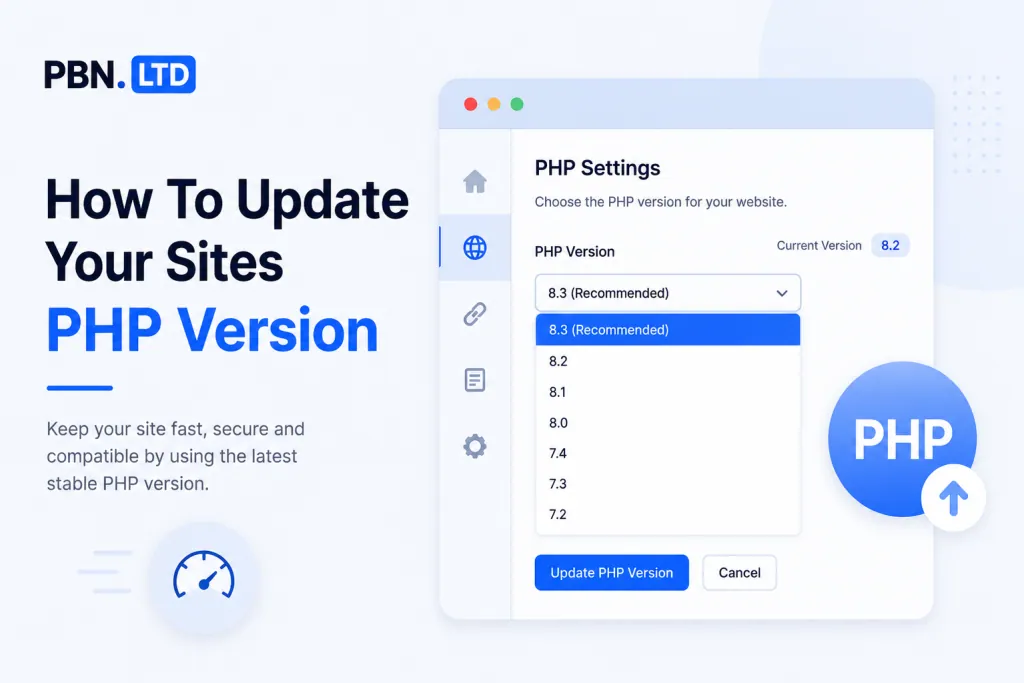
🎬 Prefer to watch instead of read? The video above is a full walkthrough of changing your PHP version on PBN LTD with Nia — every section, every option, every gotcha. The written guide below covers the same ground, with extra detail you can refer back to.
Need to bump your site onto a newer PHP version? Maybe a plugin or theme is shouting at you about an outdated PHP, maybe you’re chasing the speed and security wins of the latest release, or maybe you just like to keep things current. Either way, on PBN LTD you can change the PHP version yourself in about 30 seconds.
⚠️ Heads-up: Changing PHP version is a live change. Your site will be briefly updated by our system and shown in a non-“ok” state for a minute or two while it switches over. It’s quick, but don’t be surprised if you see a status change for a moment — that’s normal.
📘 Quick vocab:
- PHP — the language WordPress is built on. Each PHP version has different speed, security and compatibility characteristics.
- PHP version selector — the dropdown inside Edit Site where you pick which PHP version your site runs on.
- Edit Site — the modal under the Site Functions dropdown where the PHP version selector lives.
- “OK” state — the green/healthy status your site shows in the dashboard once a change has fully applied.
Why You’d Want To Update Your PHP Version
Newer PHP versions are faster, more secure, and better supported by modern plugins and themes. WordPress itself recommends running a current, actively-supported PHP version, and a lot of plugin/theme developers stop testing against old versions pretty quickly.
Common reasons people update:
- A plugin or theme is warning that your PHP version is outdated or unsupported.
- WordPress is showing a “site health” notice about PHP.
- You want the speed boost — newer PHP versions are noticeably quicker.
- You’re tightening up security and want to be on a supported branch.
- You’re about to install something new and want to be sure it’ll run.
How To Update Your PHP Version
The whole thing lives inside your PBN LTD dashboard — there’s no cPanel, no SSH, no config files to edit. Here’s exactly where to click:
- Log in to your PBN LTD dashboard.
- Click on the site name of the domain you want to manage. You’ll land on the site overview page.
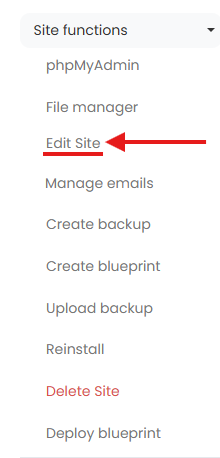
- On the left, open the Site Functions dropdown tab.
- Click Edit Site.
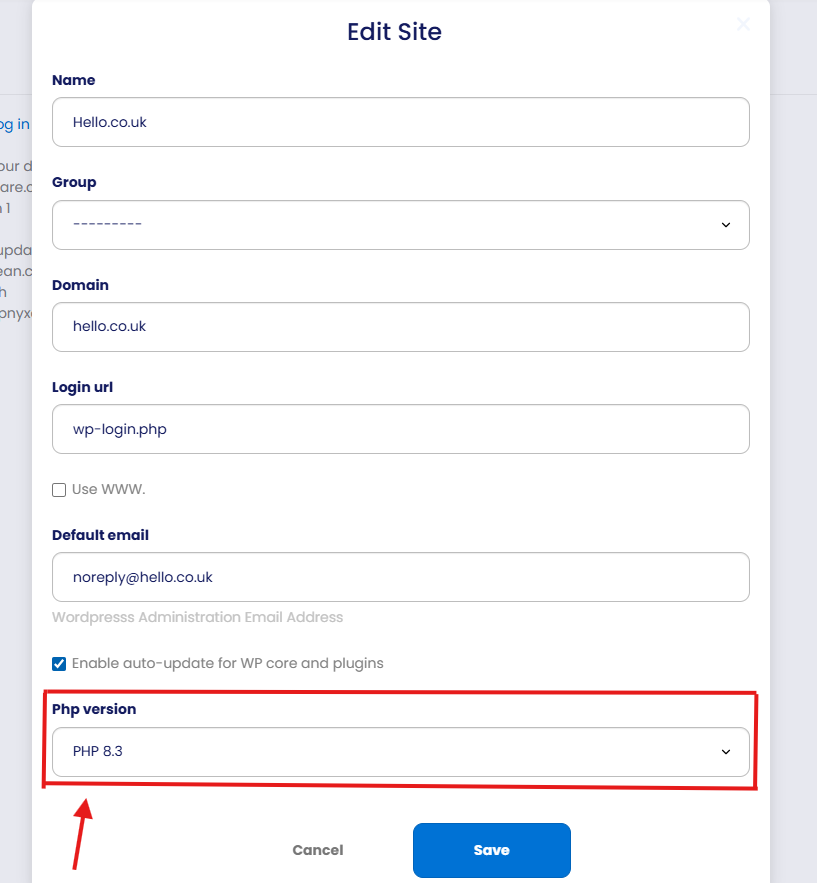
- In the Edit Site modal, scroll to the Php version field near the bottom.
- Pick the PHP version you want from the dropdown.
- Click Save.
- Wait a minute or two for the site to go back into the “ok” state — that means the update has finished.
✅ That’s it. Your site is now running on the new PHP version — no SSH, no config files, no support ticket.
What Happens After You Hit Save
When you save the change, our system swaps the PHP version your site is running on. During the swap:
- Your site’s status in the dashboard will briefly leave the “ok” state.
- The site may be momentarily unavailable or slow to respond while the change applies.
- Once the status returns to “ok”, the new PHP version is live.
You don’t need to do anything during this — just give it a minute. If the status doesn’t return to “ok” after a few minutes, jump to the Troubleshooting section below.
Which PHP Version Should I Pick?
As a rule of thumb: pick the most recent PHP version your plugins and theme support. For most modern WordPress sites, that’s the newest version available in the dropdown.
Quick decision guide:
| Your situation | What to pick |
|---|---|
| Modern site, up-to-date plugins and theme | The newest PHP version in the dropdown |
| Older site, older plugins, you’re not sure | Step up one version at a time and check the site after each |
| A plugin/theme explicitly requires a specific PHP version | Pick the version it asks for |
| Site is mission-critical and you can’t risk downtime | Test on a staging copy first, then update production |
💡 Tip: If you’re not sure whether your plugins are compatible, the easiest sanity check is to update PHP, then click around the front and back of your site. If anything’s broken, you’ll see it quickly — and you can flip back to the older PHP version the same way you switched up.
Troubleshooting
The site is showing errors after the PHP update. Almost always this is a plugin or theme that isn’t compatible with the new PHP version. Go back into Edit Site, drop the PHP version back down to the previous one, save, and the site will return to normal. Then update or replace the incompatible plugin/theme before trying again.
The site is stuck out of the “ok” state for more than a few minutes. Give it a full 5 minutes — sometimes larger sites take a touch longer to flip back. If it’s still stuck after that, open a support ticket and we’ll take a look.
I can’t see the Edit Site option under Site Functions. Make sure you’ve clicked into the specific site first (from your dashboard, click the site name). The Site Functions dropdown only appears once you’re inside the site overview page.
The PHP version dropdown is greyed out. This usually means the site is mid-task (a backup, a reinstall, etc.). Wait for the site to return to “ok” state, then try again.
🚨 I updated PHP and now wp-admin won’t load. Don’t panic — you don’t need wp-admin to fix it. Roll the PHP version back via the Edit Site screen in your PBN LTD dashboard. Once the site’s back, investigate which plugin caused the issue (usually an older one that hasn’t been updated in a while).
FAQs
Will updating PHP break my site?
Usually not — modern, well-maintained plugins and themes work fine on current PHP versions. The risk is mostly with older or abandoned plugins. If something does break, you can roll the PHP version back via the same Edit Site screen in seconds.
How long does the PHP update take?
Usually a minute or two. You’ll see your site briefly leave the “ok” state in the dashboard and then return to it once the change is fully applied.
Do I need to back up my site before updating PHP?
It’s not strictly required (we keep automatic backups), but it’s a good habit. You can take a manual backup from the same Site Functions menu (Create backup) before making changes.
Can I downgrade to an older PHP version?
Yes — the dropdown lets you go either way. Just open Edit Site, pick the older version, save, and wait for the site to return to “ok”.
Will my site be down during the update?
There can be a brief moment of unavailability while the change applies — usually only seconds, sometimes up to a minute or two. For most sites visitors won’t notice. If your site is mission-critical, schedule the update for a quieter time of day.
Does this affect my emails, DNS, or backups?
No. PHP only affects how WordPress runs on the server. Your emails, DNS, and backups are unchanged.
I have multiple sites — do I have to update them all at once?
No, each site has its own PHP version setting. You can update them one at a time, in any order, and they don’t affect each other.
Why doesn’t PBN LTD just auto-update PHP for me?
Because PHP updates can occasionally break older plugins or themes, and we’d rather give you control than surprise you with a broken site. We do recommend staying on a current, supported PHP version though — it’s faster and more secure.
How do I know what PHP version my site is currently on?
Open Edit Site under the Site Functions dropdown — the current PHP version is shown in the Php version dropdown at the bottom of the modal.
Does this apply to NTCloud subdomains too?
NTCloud is a different platform with its own setup. This guide is for our PBN LTD hosting only — NTCloud users should check the NTCloud-specific documentation for PHP version changes.
Quick Summary
- PHP version is changed from inside your PBN LTD dashboard — no support ticket needed.
- Path: site name → Site Functions → Edit Site → Php version dropdown → Save.
- The site will briefly leave the “ok” state, then return once the update has finished (usually a minute or two).
- If something breaks, just open Edit Site again and roll back to the previous PHP version.
- As a rule of thumb, pick the newest PHP version your plugins and theme support.
That’s it. A 30-second change, a quick wait, and you’re on a newer, faster, more secure PHP version.