
Seeing a “Too Many Redirects” (sometimes shown as ERR_TOO_MANY_REDIRECTS in Chrome) error on your website? Don’t panic — this is a site-level error, not something shown in your PBN LTD dashboard, and in most cases it’s a quick fix. This guide walks you through every possible cause and exactly how to sort it, in plain English.
📑 What’s In This Guide
🤔 What Does “Too Many Redirects” Mean?
Your browser asks the website for a page. The website tells the browser “go over there instead”. Then “there” tells the browser “no, go back over here”. The browser keeps bouncing back and forth in a loop until it gives up and shows the error.
It’s almost always one of these:
- Your browser or computer has an old redirect stuck in its cache
- Your site is set to www in one place and non-www in another (or HTTPS vs HTTP)
- An SSL certificate is still being issued and HTTPS isn’t ready yet
- A plugin or .htaccess rule is fighting with the dashboard setting
⚡ Step 1 — The Quick Local Fix (Do This First!)
In a huge number of cases, the site is actually working fine — it’s just your computer that has an old redirect stuck. Always do this first before touching anything on the server.
✅ Your 60-Second Checklist
- Fully clear your browser cache. Incognito mode alone won’t cut it — you need a proper cache clear. In Chrome:
Ctrl + Shift + Delete→ tick “Cached images and files” → All time → Clear data. - Flush your local DNS cache:
- Windows: open Command Prompt, run
ipconfig /flushdns - macOS:
sudo dscacheutil -flushcache; sudo killall -HUP mDNSResponder - Linux:
sudo systemd-resolve --flush-caches
- Windows: open Command Prompt, run
- Temporarily disable browser extensions — especially HTTPS forcers, privacy tools, ad-blockers and redirect managers.
- Try a different browser or your phone on mobile data. If it works there, the site is fine — your main browser just has the loop cached.
- Use a proxy to double-check: open proxysite.com and load your domain through it. If it loads via the proxy, the site is online and the issue is 100% on your end.
💡 Tip: Even if the site is online, you may keep seeing the error in your browser until the cache is properly cleared. So please do the full cache clear — not just a refresh.
🛠️ Step 2 — Still Broken? It’s Probably Site-Level
If you’ve cleared everything and the error still appears for everyone (including via the proxy or on mobile data), then the redirect loop is happening on the website itself. This usually happens when:
- You’ve just added or moved a domain to PBN LTD
- You’ve just switched HTTPS on (or off) in your dashboard
- You’ve just changed www to non-www (or the other way around)
- You’ve just migrated a site and the old hardcoded redirects are still in the files
The #1 reason in this list is a mismatch between what your PBN LTD dashboard is set to and what your site files (or WordPress settings) think the site should be. We’ll cover this in detail below.
🔁 The www / non-www (and HTTPS) Mismatch — Most Common Cause!
Every domain has two versions of its address:
www.yourdomain.com(the “www” version)yourdomain.com(the “non-www” / “naked” version)
A website should pick one and redirect the other to it. If your dashboard says “use www” but your site files say “use non-www” (or vice versa) — that’s the redirect loop. They keep bouncing visitors between the two forever.
🎯 How to Spot The Mismatch
Look in two places and compare:
| Where to Check | What to Look At |
|---|---|
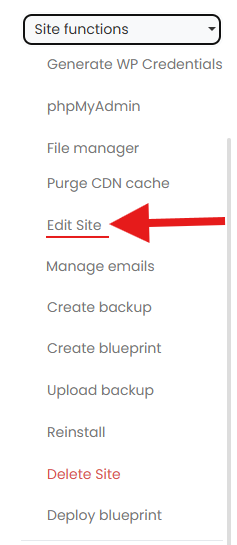
| PBN LTD dashboard → click site name → Site Functions → Edit Site | Is www. ticked on or off? Is HTTPS on or off? |
Your site files (WordPress: Settings → General; Static HTML: .htaccess) | Does the address there match the dashboard? |
If these two don’t match — that’s your loop. Below is how to fix it for both types of site.
🟦 WordPress Sites — Every Scenario & Fix
Scenario A — You moved a site and now www / non-www doesn’t match
Classic example: your old site was at yourdomain.com (non-www). You moved it to PBN LTD and selected www in our dashboard. But inside WordPress, the database and .htaccess still say non-www — so the dashboard sends visitors to www., WordPress sends them back to non-www, repeat forever.
🔧 You have two options — pick whichever is easier:
Option 1 — Change the dashboard to match your site files (easiest if you can’t log in to WordPress):
- Go to your PBN LTD dashboard and click the site name.
- Open Site Functions → Edit Site.
- Toggle the www setting to match what’s in your files (e.g. turn off www if your
.htaccessforces non-www). - Save changes, wait 1–2 minutes, then clear your browser cache and reload.
Option 2 — Change WordPress to match the dashboard (cleaner long-term):
- Log in to WordPress (use One Click Admin Login from your dashboard).
- Go to Settings → General.
- Set both WordPress Address (URL) and Site Address (URL) to match what the dashboard is set to — for example
https://www.yourdomain.comorhttps://yourdomain.com. - Save changes.
- If you have any redirect, SSL or SEO plugin installed that forces a particular URL version, deactivate it temporarily, then reactivate after the URLs are set correctly.
Scenario B — Stale .htaccess redirect rules from the old host
When you migrate a WordPress site, the .htaccess file usually comes along for the ride — and so do any redirect rules that were in it. If the old host was forcing www → non-www (or HTTPS), those rules will still be firing on PBN LTD and may now conflict with our dashboard settings.
🔧 How to Check & Fix
- In your PBN LTD dashboard, click the site name → Site Functions → File manager.
- Open the
.htaccessfile at the root of your site. - Look for any block that mentions
RewriteRule,www, orHTTPS— like these:# Force www RewriteCond %{HTTP_HOST} ^yourdomain\.com [NC] RewriteRule ^(.*)$ https://www.yourdomain.com/$1 [R=301,L] # Force HTTPS RewriteCond %{HTTPS} off RewriteRule ^(.*)$ https://%{HTTP_HOST}/$1 [R=301,L] - Make sure these rules match what you’ve chosen in the dashboard. If the dashboard is set to non-www but the file is forcing www → fix one or the other.
- If you’re not sure, the safest move is to delete the custom redirect block and let PBN LTD handle redirects from the dashboard.
- Save the file, clear your browser cache, and reload the site.
⚠️ Always make a backup before editing .htaccess. A typo in this file can take your whole site offline. The good news: PBN LTD takes daily backups automatically, but it’s still smart to take a manual one via Site Functions → Create backup before touching this file.
Scenario C — Plugin conflict (SSL / redirect / SEO plugins)
SSL, redirect and SEO plugins can be a frequent cause. Anything that forces HTTPS or a specific URL version inside WordPress can fight with the dashboard’s own HTTPS / www toggle — especially if it was installed before SSL was fully ready on the server.
🔧 How to Check & Fix
- Log in to WordPress (One Click Admin Login from your dashboard).
- Go to Plugins → Installed Plugins.
- Temporarily deactivate any SSL, redirect, SEO or caching plugins you have installed.
- Visit your site (in a private/incognito window). If the loop is gone — one of those plugins was the culprit.
- Reactivate them one by one, checking the site each time, to find the offender.
Scenario D — Locked out of WordPress completely
If the loop is so bad you can’t even reach /wp-admin/, you can hardcode the correct URL into wp-config.php to force WordPress to use it.
- Open Site Functions → File manager in your PBN LTD dashboard.
- Open
wp-config.php(at the root of the site). - Just above the line that says
/* That's all, stop editing! */, add:define('WP_HOME','https://www.yourdomain.com'); define('WP_SITEURL','https://www.yourdomain.com'); - Make sure both URLs match exactly what’s set in your PBN LTD dashboard (www vs non-www, http vs https).
- Save the file, clear your browser cache, and try the site again.
🟧 Static HTML Sites — Every Scenario & Fix
Static HTML sites don’t have a WordPress dashboard, so the redirect loop almost always comes down to one of two files: .htaccess at the root, or any manual <meta http-equiv="refresh"> tags inside your index.html.
Scenario A — www / non-www mismatch between files & dashboard
Exact same problem as the WordPress version. You ticked www in the PBN LTD dashboard, but your .htaccess has a rule forcing visitors to non-www (or vice versa). Each side keeps fighting the other.
🔧 Two Ways to Fix — pick one:
Option 1 — Match the dashboard to your files:
- Open the file manager and check what your
.htaccessis forcing — for example, “force HTTPS only” or “force HTTPS + non-www”. - In the dashboard, go to Site Functions → Edit Site and set www / HTTPS to match exactly what the file is doing.
- Save, wait a minute or two, clear your browser cache, then reload the site.
Option 2 — Match the files to the dashboard:
- Open Site Functions → File manager in the dashboard.
- Edit your
.htaccessat the root of the site. - Update the redirect rules so they push visitors to the same version (www or non-www, http or https) that the dashboard is set to. Or simply remove the redirect rules entirely and let the dashboard do the work.
- Save the file, clear cache, reload.
Scenario B — Conflicting redirect rules inside .htaccess
Sometimes the file itself contains two rules that fight each other — for example, one rule forces www and another forces non-www further down. Or a rule forces HTTPS but then another rule strips HTTPS off again.
- Open Site Functions → File manager.
- Open
.htaccessat the root and read through everyRewriteRuleandRedirectline. - Make sure only one direction is being forced (e.g. just “force https + non-www” — not also “force www” lower down).
- If you’re not 100% sure what each rule does, comment them out by adding
#at the start of the line, save, and test — you can always uncomment them again.
Scenario C — Meta refresh redirects inside index.html
Old static sites sometimes have a redirect baked right into the HTML — something like <meta http-equiv="refresh" content="0;url=https://www.yourdomain.com/">. If the dashboard is also forcing the opposite version, you get a loop.
- Open your
index.htmlin the file manager. - Search for
http-equiv="refresh"and remove or fix any rogue redirect tags. - Save, clear cache, then reload the site.
🔒 SSL Still Propagating? (Just Switched HTTPS On)
On PBN LTD, an SSL certificate is issued automatically once your domain reaches the “OK” state in the dashboard and you’ve selected HTTPS for the site. But it’s not instant — it can take a short while to propagate.
If you try to load the site over HTTPS before the certificate has finished issuing, the server may bounce you back to HTTP, which then redirects to HTTPS again — boom, loop.
⏰ What to Do
- Confirm your domain shows “OK” in the dashboard. (Not sure what the states mean? See Understanding the Status States of Your Domains.)
- Wait around 30 minutes for SSL to fully issue.
- Fully clear your browser cache.
- Reload your site.
- Need a full walkthrough on enabling HTTPS? See How to Enable & Use SSL (HTTPS) on Your Websites.
🧭 Quick Reference Table — Match Symptom to Fix
| Symptom / Situation | Most Likely Cause | Where to Fix It |
|---|---|---|
| Site loads on phone but not desktop browser | Cached redirect in browser | Clear browser cache, flush DNS |
| Just migrated a site over (Cleared Cache) | www / non-www mismatch with dashboard | Site Functions → Edit Site or .htaccess / WP Settings |
| Just switched HTTPS on in dashboard | SSL still propagating | Wait ~30 mins, clear cache |
| Just installed an SSL OR redirect plugin | Plugin forcing HTTPS twice | Deactivate plugin, then test |
Can’t even reach /wp-admin/ | Loop hitting WP admin too | Hardcode URLs in wp-config.php |
| Static HTML site after migration | Old .htaccess rules vs dashboard | Edit .htaccess via File manager |
❓ FAQs
Will turning www on/off in the dashboard delete my site?
No — toggling www just changes which version of the address visitors land on. Your files and database aren’t touched. The change takes effect within a minute or two.
Why does it only happen in my browser and not on other devices?
301 redirects are cached aggressively by browsers — once your browser learns “go from A to B”, it remembers, even after the website has been fixed. Clearing the cache (or trying another browser) is the only reliable way to test.
I edited my .htaccess and now my whole site is down — help!
That’s why we always say take a backup first. Go to Site Functions → Backups (or upload your backup of .htaccess) and restore the file. If you didn’t take a backup, the safest move is to rename .htaccess to .htaccess.old via the file manager — that disables it completely and your site should come back online. Then you can rebuild the rules from scratch.
My domain is in WAITING DNS UPDATE — could that cause this?
Possibly, yes. If DNS hasn’t fully resolved, HTTPS can’t issue cleanly and you may bounce between HTTP and HTTPS. Wait for the domain to hit “OK” first. See Understanding the Status States of Your Domains and DNS Resolution & Important Considerations.
Nothing in this article works — what now?
Open a support ticket and we’ll get it sorted. Include the exact domain, what you’ve already tried, and a screenshot of the error if possible. See How to Submit a Support Ticket.
🧠 Summary
- “Too Many Redirects” is a site-level error, not a dashboard error.
- Always try a full browser cache clear + DNS flush first — most cases stop there.
- If the error persists for everyone, it’s almost always a mismatch between the PBN LTD dashboard (www / HTTPS settings) and your site files (
.htaccess, WordPress Settings → General, or hardcoded redirects). - Fix it by making the dashboard and files match — change whichever one is easier.
- If you’ve just enabled HTTPS, give SSL ~30 minutes to propagate before troubleshooting further.
✅ Still stuck? Open a support ticket and we’ll have it sorted in no time.