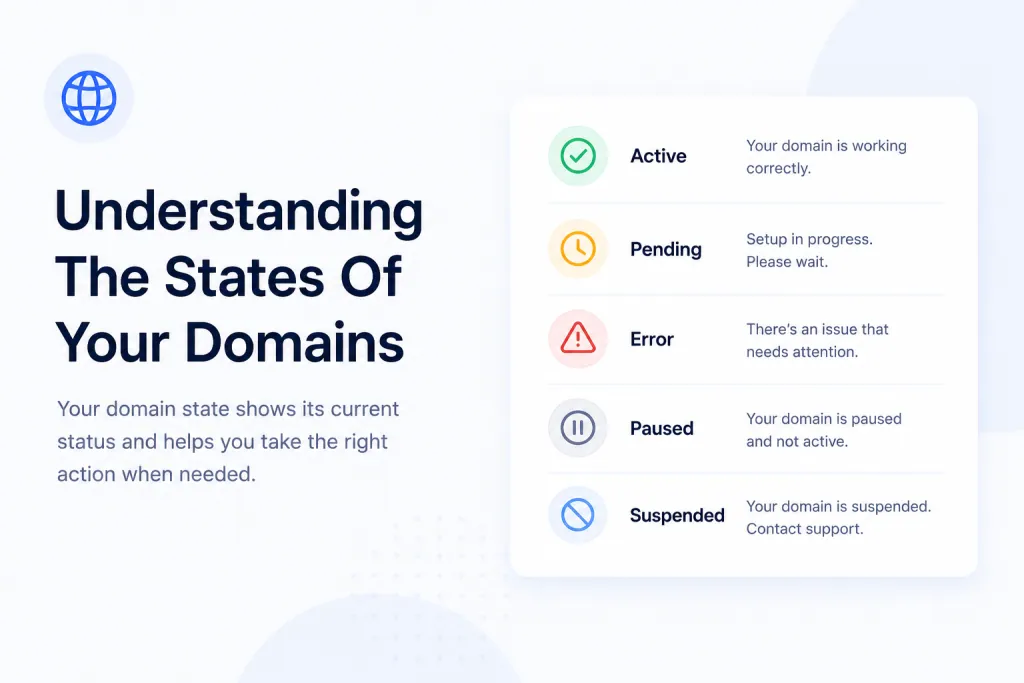
When you add a domain to your PBN LTD dashboard, it moves through a few different status states before going fully live. This guide explains exactly what each state means, how long it should take, and what (if anything) you need to do at each stage. TL;DR — most of the time you don’t need to do anything except wait for DNS to resolve.
🚦 All domain status states — at a glance
Every domain you add will pass through some or all of these states. Here’s the cheat sheet so you can quickly check what your domain is doing right now:
| Status | What it means | What you should do |
|---|---|---|
| 🆕 NEW | The domain has just been added and is queued for setup. | Nothing — just wait. |
| 🛠️ BUILDING | We’re provisioning the CDN zone and hosting resources for your domain. | Nothing — usually takes seconds to a minute. |
| 🌐 WAITING DNS UPDATE | Setup on our end is done. We’re now waiting for your nameservers / DNS to resolve to us. | Update your nameservers at your registrar (if you haven’t already), then wait for DNS to propagate. |
| ⚙️ ACTIVATING CDN | DNS has resolved. We’re now activating the CDN and issuing SSL. | Nothing — final stretch. |
| ✅ OK | Your domain is fully live, SSL issued, ready to use. | Nothing — you’re done! 🎉 |
| 🔴 ERROR | Something went wrong during setup, or your site needs attention. | See the ERROR section below — there are two different fix paths depending on when it happened. |
🔄 The normal setup flow
For a brand-new domain, here’s the journey from “just added” to “fully live”:
- 🆕 NEW — your domain has just been added.
- 🛠️ BUILDING — we provision the CDN zone + hosting in the background. Usually takes seconds.
- 🌐 WAITING DNS UPDATE — your domain is ready on our side. Now we need your nameservers to point at us. If you haven’t already, update your nameservers at your registrar.
- ⚙️ ACTIVATING CDN — DNS has resolved. We’re activating the CDN and issuing your SSL certificate. Usually takes a few minutes.
- ✅ OK — your domain is fully live. SSL is issued, the CDN is serving traffic, and your site is reachable. 🎉
💡 Heads up: The state that takes the longest is almost always WAITING DNS UPDATE — and that’s not us being slow, it’s just how DNS works around the world. See the DNS timeline below.
🕒 DNS propagation timeline
How long your domain sits in WAITING DNS UPDATE depends entirely on your registrar / DNS provider. Here’s a rough guide:
- Cloudflare DNS — usually resolves in under 5 minutes. Fastest option.
- AWS Route 53 / Azure DNS — can take a few hours.
- General registrar DNS — can take up to 48 hours, and in rare cases up to 72 hours.
If you’re under 48 hours from updating your nameservers, the answer is almost always “just wait a bit longer”. You can check propagation worldwide with whatsmydns.net.
🛑 Why we can’t speed up DNS
🛑 We genuinely cannot make DNS resolve faster. DNS propagation is handled by third-party providers (your registrar, ISPs, global resolvers) — we don’t control any of it from our side.
Please don’t open a support ticket asking us to “speed up DNS” — we’d love to help, but it’s physically not possible. The fastest fix is to use Cloudflare DNS for your domain (free, usually resolves in under 5 minutes).
Want to know more about what does and doesn’t speed up DNS? See DNS Resolution & Important Considerations for the deep dive.
❗ Common issues to avoid
If your domain seems stuck in WAITING DNS UPDATE for ages, 99% of the time it’s one of these:
- 🔐 DNSSEC is enabled at your registrar — this must be turned off or DNS will not resolve to us. This is the #1 cause of stuck domains.
- 🧾 Wrong nameservers — they must exactly match the ones shown in your dashboard for that specific domain. Each domain may have different nameservers — don’t copy from another domain.
- 🧹 Extra nameservers added — only use the ones we give you. Don’t leave the old registrar nameservers in alongside ours, and don’t add extra “for safety”.
- 🗓️ It’s been over 2 weeks since you added the domain and you’re only just updating the nameservers now — the CDN zone may have been purged for being inactive. In this case you’ll need to delete and re-add the domain in your dashboard.
For a full troubleshooting checklist (including how to spot hidden DNSSEC records), see DNS Resolution & Important Considerations.
🔴 What if my domain shows ERROR?
Don’t panic — ERROR is usually a minor hiccup, and your site is often still live. The fix depends on when the ERROR happened:
- ERROR right after you added the domain (it never reached OK) → you can usually fix this yourself by Reinstalling the domain.
- Was previously OK, then went to ERROR → do not reinstall. Open a support ticket and we’ll take a look.
📘 For the full ERROR troubleshooting guide — including step-by-step Reinstall instructions, what to check before reinstalling (Cloudflare status, etc.), and FAQs — see My Domain Is In ‘ERROR’ State — What It Means & How to Fix It.
✅ When is my domain fully ready?
Your domain is considered fully live when its status shows OK in the dashboard. At this point:
- ✅ DNS has fully resolved to us.
- ✅ The CDN is active and serving your site.
- ✅ Your SSL certificate has been issued (on supported CDNs — see SSL on Your Websites).
- ✅ You can visit the site, log into WordPress, and start building.
💡 Tip: If your dashboard says OK but the site looks weird in your browser, that’s almost always a local cache issue. Try in an incognito window, or on your phone using mobile data, before assuming something’s wrong.
❓ FAQs
How long should each state take?
NEW + BUILDING = seconds to a minute. ACTIVATING CDN = a few minutes once DNS resolves. The slow one can be WAITING DNS UPDATE, which depends entirely on your DNS provider — anywhere from 5 minutes to 48 hours.
My domain has been WAITING DNS UPDATE for ages — is it broken?
Probably not. First check: have you actually updated your nameservers at your registrar? Then check the Common issues list — DNSSEC enabled, wrong nameservers, extras left in, or domain added over 2 weeks ago without updating NS are the usual culprits. If it’s all correct and it’s been over 48 hours, open a support ticket.
Can I speed up DNS resolution?
Not from our side — but you can! Use Cloudflare DNS for your domain (it’s free) and resolution typically drops to under 5 minutes. See DNS Resolution & Important Considerations for what actually works and what doesn’t.
My domain skipped straight to ERROR — what now?
If it went to ERROR right after you added it, you can usually fix it yourself with a Reinstall. Full instructions in the ERROR state guide.
Why does my domain have different nameservers to my other domains?
That’s intentional — each domain gets its own nameservers for privacy, scalability, and to match the specific CDN stack we’re using for that domain. Always copy the nameservers directly from the dashboard entry for that domain. See How to Update Your Nameservers for more.
Still stuck?
If you’ve gone through this guide, checked the common issues, waited a sensible amount of time, and your domain still isn’t reaching OK, open a support ticket from your dashboard and we’ll investigate. Include your domain name and your current status — see How to Submit a Support Ticket for what to include.
Related articles
If your site is showing a Migrating Site status, see What Does ‘Migrating Site’ Mean? — this is a separate automated process where our AI moves your site to a less-loaded server.