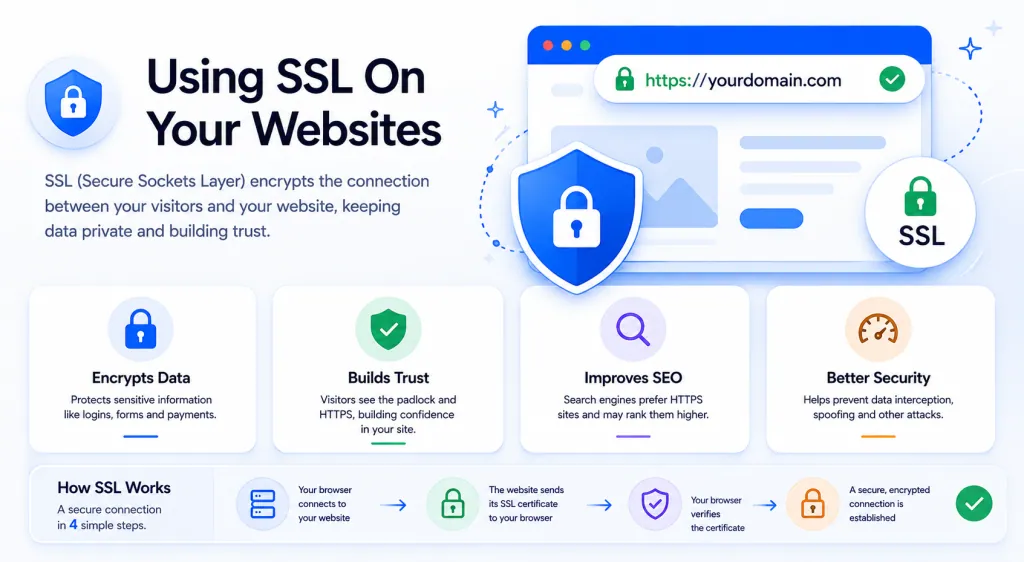
Good news: SSL (HTTPS) is handled for you on PBN LTD — you don’t need to install certificates, buy anything extra, or mess with plugins. On Cloudflare and BunnyCDN it’s switched on automatically and can’t be turned off. On KeyCDN, CDN77, Gcore and CloudFront you can choose whether to enable HTTPS or stick with HTTP. This guide explains exactly what that means, what to expect on each CDN provider, and how to handle the few situations where things don’t look right.
📑 What’s in this article
- 🔒 What is SSL / HTTPS (and why every site needs it)?
- ✅ SSL is automatic on Cloudflare & BunnyCDN
- 🌍 KeyCDN, CDN77, Gcore & CloudFront — HTTP or HTTPS, your choice
- 📊 SSL support at a glance
- 🛡️ Why SSL is handled at the CDN layer
- 🚫 Don’t use SSL plugins or .htaccess hacks
- 🛠️ Troubleshooting common SSL issues
- ❓ Frequently asked questions
🔒 What is SSL / HTTPS (and why every site needs it)?
SSL (sometimes called TLS) is what turns http:// into https:// and puts the little padlock next to your address bar. It encrypts the connection between your visitor’s browser and your website, so nobody in the middle can read or tamper with what’s being sent.
In plain English: HTTPS = secure, trusted, modern. Without it, browsers like Chrome will show a scary “Not Secure” warning, and Google will rank you lower. That’s why we’ve made it automatic and easy for you.
✅ SSL is automatic on Cloudflare & BunnyCDN
If your domain uses Cloudflare or BunnyCDN, SSL is enabled automatically — there’s nothing for you to do.
When you add a new domain, you’ll see a Use HTTPS checkbox in the setup form. On these two providers the box is pre-ticked and can’t be unticked — because they only accept HTTPS traffic. Your site will be served securely from day one.
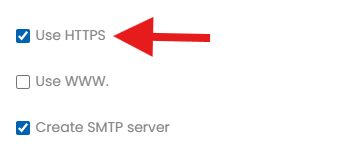
✅ What this means for you: No certificates to buy, no plugins to install, no configuration to fiddle with. Just add the domain, wait for it to reach the OK status, and your site will load over https:// with a valid padlock. All you have to do is tick ‘HTTPS’ when adding a new domain.
🌍 KeyCDN, CDN77, Gcore & CloudFront — HTTP or HTTPS, your choice
KeyCDN, CDN77, Gcore and CloudFront all support both HTTP and HTTPS — the choice is yours — and all four now work with www. and non-www domains too. When you add a domain on any of these, you’ll see the Use HTTPS checkbox in the setup form:
- Tick the box — your site will be served over
https://with a valid padlock. - Leave it unticked — your site will be served over
http://only.
✅ Good to know: KeyCDN, CDN77, Gcore and CloudFront now all accept both HTTP and HTTPS domains — so you can set your site up whichever way you prefer. (Cloudflare and BunnyCDN support both too, always over HTTPS.)
📊 SSL support at a glance
Here’s how SSL works on each of our six CDN providers:
| CDN Provider | SSL / HTTPS | www / non-www | What you’ll see in the dashboard |
|---|---|---|---|
| Cloudflare | ✅ Automatic — always on | Both | Use HTTPS box is pre-ticked and locked. |
| BunnyCDN | ✅ Automatic — always on | Both | Use HTTPS box is pre-ticked and locked. |
| KeyCDN | ✅ Optional — your choice | Both | Use HTTPS box — tick for HTTPS, leave unticked for HTTP. |
| CDN77 | ✅ Optional — your choice | Both | Use HTTPS box — tick for HTTPS, leave unticked for HTTP. |
| Gcore | ✅ Optional — your choice | Both | Use HTTPS box — tick for HTTPS, leave unticked for HTTP. |
| CloudFront | ✅ Optional — your choice | Both | Use HTTPS box — tick for HTTPS, leave unticked for HTTP. |
🛡️ Why SSL is handled at the CDN layer
Rather than issuing certificates from the hosting server (which would leave a common pattern across all your sites), PBN LTD issues SSL certificates at the CDN layer, unique to each domain. This setup:
- Avoids common SSL-related patterns across your domains
- Maintains privacy and stealth for your PBN network
- Ensures maximum compatibility with CDN and browser systems
🚫 Don’t use SSL plugins or .htaccess hacks
🚨 Do not install WordPress SSL plugins (Really Simple SSL, WP Force SSL, etc.), and do not add HTTPS redirect rules to .htaccess.
Our system handles SSL automatically at the CDN layer. Adding extra tools on top causes:
- Misconfigurations (broken padlocks, errors)
- Redirect loops (site won’t load at all)
- Unwanted hosting footprints — defeating the whole point of a stealth PBN
🛠️ Troubleshooting common SSL issues
🔓 My site still shows “Not Secure” / no padlock
9 times out of 10, this is a cache issue. On Cloudflare in particular, there can be a short delay while the SSL certificate is issued behind the scenes — usually a few minutes, but occasionally up to 30 minutes.
- Wait around 30 minutes after the domain reaches OK in your dashboard.
- Clear your browser cache fully (or test in a private/incognito window).
- Make sure you’re visiting the
https://version of the URL, nothttp://. - On KeyCDN, CDN77, Gcore or CloudFront? These let you choose HTTP or HTTPS — check that you ticked the Use HTTPS box during setup if you want your site served securely.
- Check from outside your browser using a free SSL checker like sslshopper.com/ssl-checker.html — if it shows a valid certificate there, the problem is local to your machine (cache, old DNS lookup, etc.).
- If it’s still not showing the padlock after that, get in touch via the chat widget on our website and we’ll take a look.
🖼️ Padlock shows a warning (“mixed content”)
This happens when your page is loaded over https:// but some images, scripts, or stylesheets on the page are still hard-coded with http:// URLs. The fix is to update those URLs inside WordPress (Settings → General, and search/replace inside your content for old http://yourdomain.com references).
♻️ I see a redirect loop or the site won’t load
Almost always caused by an SSL plugin (Really Simple SSL, etc.) or HTTPS rules in .htaccess. Deactivate the plugin and remove any HTTPS redirect rules from .htaccess — our CDN handles it all for you.
❓ Frequently asked questions
Do I need to buy an SSL certificate separately?
No. SSL is free on every CDN we offer. On Cloudflare and BunnyCDN it’s on automatically; on KeyCDN, CDN77, Gcore and CloudFront you switch it on with a single checkbox — there’s never anything extra to buy or install.
Can I turn HTTPS off if I don’t want it?
On Cloudflare and BunnyCDN, no — the box is locked on because they only accept HTTPS traffic. On KeyCDN, CDN77, Gcore and CloudFront you can choose, but we’d strongly recommend leaving HTTPS on: it’s better for security, visitor trust, and SEO.
Can I use Let’s Encrypt or my own certificate?
No — and you don’t need to. SSL is issued automatically at the CDN layer, unique to each domain, which is more privacy-friendly for a PBN setup than reusing certificates from another source.
Does CDN77 support HTTPS?
Yes — CDN77 supports both HTTP and HTTPS. Just tick the Use HTTPS checkbox during domain setup if you want HTTPS, or leave it unticked for HTTP. CDN77 now works with both www. and non-www domains too.
Can I use a non-www domain on CDN77?
Yes — CDN77 now supports both www. and non-www domains, so you can set your site up either way. In fact all our CDNs — Cloudflare, BunnyCDN, KeyCDN, CDN77, Gcore and CloudFront — accept both www and non-www.
Does SSL affect SEO?
Yes — positively. Google uses HTTPS as a ranking signal, and browsers stop flagging your site as “Not Secure”. There’s no downside to having it on.
If your site isn’t showing the padlock you expected and you’re not sure why, our team is happy to take a look — just get in touch via one of our suport channels.