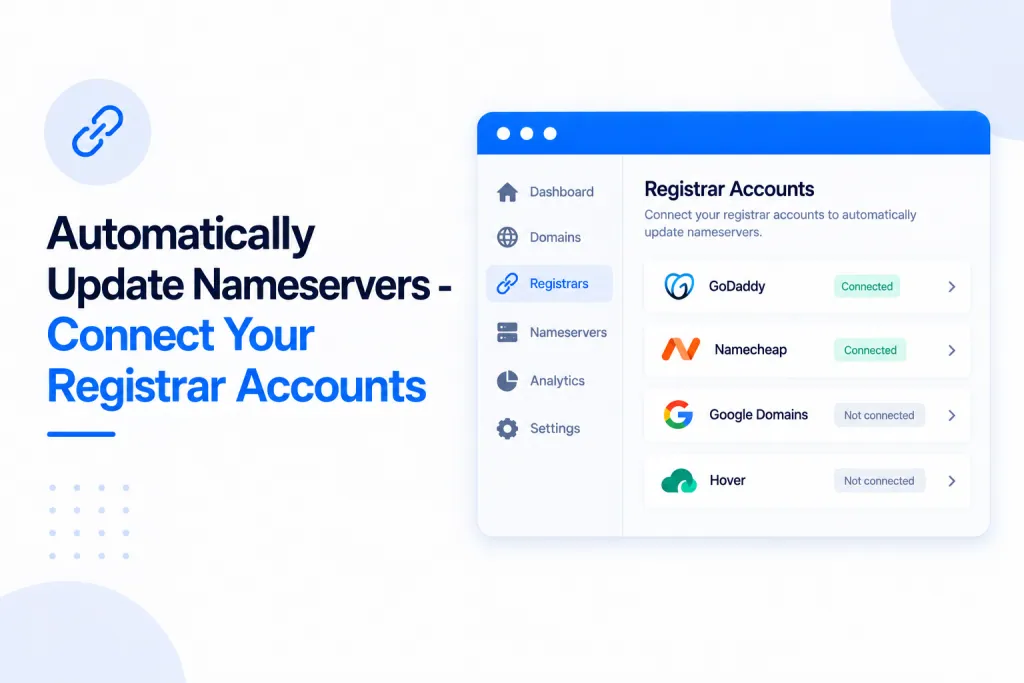
Pointing your nameservers by hand — copying them into your registrar and waiting for DNS — is now optional. Connect your domain registrar accounts to PBN LTD once, and we’ll set the correct nameservers for your sites automatically. No more following emailed instructions or waiting around. We currently support Namecheap, Porkbun and Zinn Digital.
💡 The short version: connect your registrar once under Registrar connections in your account menu. From then on, whenever a site is waiting on DNS, we find the domain in your connected account and set its nameservers for you — usually within 10 minutes.
🔗 What automatic nameservers do
Normally, when you add a site, you have to log in to your domain registrar and change the nameservers yourself. With a registrar connection, PBN LTD does that step for you: it finds each domain in your connected registrar account and points it at the right nameservers automatically — so your sites go live without the manual back-and-forth.
⚙️ How it works
You connect your registrar account once, in your account menu under Registrar connections. You can connect as many accounts as you like per provider — if you have ten Namecheap accounts, for example, you can connect all ten. You’re not limited to one account per registrar.
After that, it runs on its own:
- Every 10 minutes, we check the sites in your account that are waiting for DNS, find the matching domain in your connected registrar, and set the correct nameservers.
- We record your existing nameservers first, so any change can be undone.
- We never touch a site that’s already live, and never move a main cloud site off ntcloudhosting.
- Once it’s done, the site shows “Nameservers set automatically” along with the time. If something goes wrong, it tells you exactly why and how to fix it.
Prefer to trigger it yourself? Every waiting site has a button to update its nameservers right away, and there’s a bulk button to do all of your waiting sites at once.
🟠 Connecting Namecheap
First, enable API access inside Namecheap:
- Log in to Namecheap and go to Profile → Tools.
- Switch on Namecheap API Access, and whitelist our IP address:
190.2.143.245.
Then, in your PBN LTD dashboard under Registrar connections, enter your Namecheap username (not your email address) and your API key.
📌 Heads-up: Namecheap only grants API access to accounts that have 20 or more domains, a $50 account balance, or $50 spent. If your account doesn’t meet one of these, Namecheap won’t let you turn the API on.
🐷 Connecting Porkbun
- In your Porkbun account, create an API key and a secret key.
- Switch on API Access for each domain you want managed — or use Porkbun’s “opt in all domains” option to enable them all at once.
- In your PBN LTD dashboard under Registrar connections, enter both the API key and the secret key.
🟣 Connecting Zinn Digital
- In the Zinn Digital app, create an API key with permission to view sites and manage domain DNS.
- Enter that key in your PBN LTD dashboard under Registrar connections.
📌 Heads-up: only domains actually registered with Zinn Digital can be updated this way. Domains that are merely linked in from another registrar can’t be changed through Zinn Digital.
✅ Set it once and forget it. After your registrar is connected, sites waiting on DNS get their nameservers set for you automatically — your old nameservers are always kept on record, and live sites are never touched.