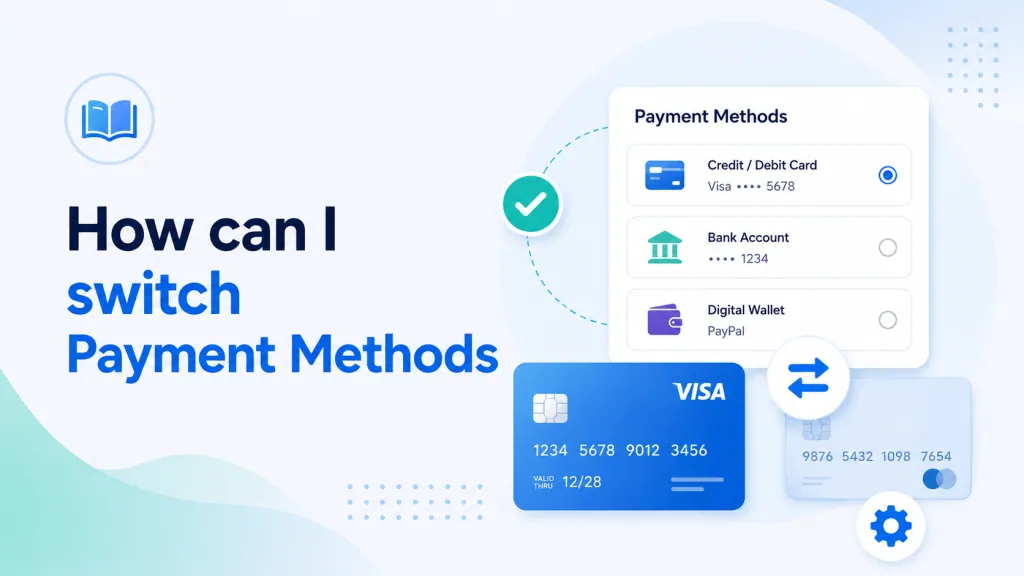
Quick summary: You can change your card, PayPal account, or switch between payment types from your PBN LTD dashboard. Important: changing your method is only step one — you must also make a payment using the new method for the switch to take effect.
Just updating the details of your current method (e.g. new card expiry)? See Edit your billing details instead.
⚠️ Important: switching isn’t complete until you pay on the new method
Changing your payment method in the dashboard is only step one. You must then make a payment using the new method for the switch to take effect on our side.
Why? Our system listens for a confirmation message from whichever payment type your subscription is currently set to. When you switch methods without paying on the new one, that confirmation never arrives — so your subscription stays in a mismatched state.
What happens if you switch but don’t pay on the new method
- If your original method was a subscription (e.g. PayPal subscription or Fastspring card): the original payment still comes out automatically on your due date, because the subscription is still active with that processor. But our system won’t receive the confirmation it’s expecting from the new method, so your account expiry won’t update. Example: if your renewal was due 20 May, the old method still takes the payment on 20 May, but your expiry stays at 20 May instead of moving to 20 June.
- If your original method was one-time (manual) payments: no payment will be taken automatically at all. You’ll need to make a manual payment on the new method to activate it.
The fix is the same in every case: change your payment method and complete a payment using the new method before your next billing date. The switch is only live once that new payment goes through.
This applies to every kind of switch, including:
- PayPal subscription → PayPal one-time payments
- Fastspring (card) → PayPal
- PayPal → Fastspring (card)
- Anything → Crypto
Updating the same payment type
Use this if you just want a different card or a different PayPal account.
- Log in at app.pbn.ltd/account/login.
- Click your name in the top-right corner.
- From the dropdown, select Billing.
- You’ll see your current payment method listed.
- Click Manage (for PayPal) or Change (for card) to update your details.
Your subscription stays active and billing continues on schedule.
Switching to a different payment type
Use this if you’re moving between Card, PayPal, and Crypto.
- Log in at app.pbn.ltd/account/login.
- Click your name in the top-right corner.
- From the dropdown, select Subscriptions.
- At the top of the Subscriptions page, you’ll see your current plan and payment method.
- Click the Change button on the right.
- Select your new payment method and subscription package.
- Submit the change, refresh the page, re-select your package (e.g. PBN50), and complete a payment using your new payment method. The switch is only complete once this payment goes through.
Heads up: sites may briefly freeze during the update — this is normal. Your domains will return to the OK state one by one as soon as the new payment is processed.
Switching to or from Crypto
Crypto payments are handled as one-time transactions, so there’s nothing stored to switch from. To move to or from crypto:
- Moving to crypto: wait until your current subscription ends, then renew with your preferred crypto option at checkout.
- Moving from crypto: at your next renewal, choose Card or PayPal instead of crypto.
Need more help?
If you’re unsure of your billing timing — or you’ve already changed your payment method but haven’t made a payment on the new one yet — open a support ticket before your next billing date. It’s much easier to prevent a billing mismatch than to fix an expiry that hasn’t updated.