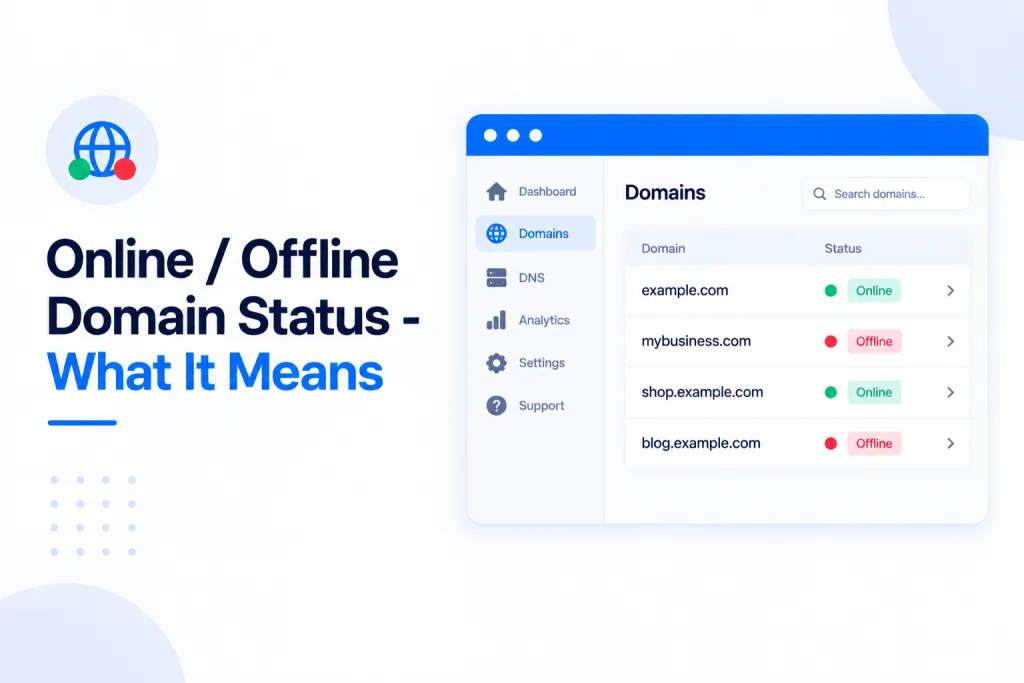
Your dashboard now tells you at a glance whether each of your sites is healthy. Our system automatically scans every domain and reports its status — Online or Offline — right in the main dashboard overview, so you can spot a problem the moment it happens without opening each site one by one.
💡 Heads-up
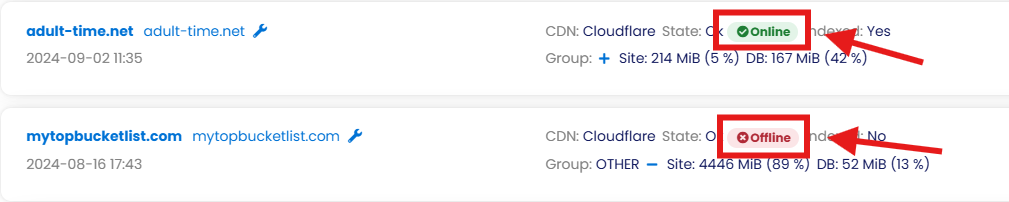
The status is checked automatically and kept up to date in your overview — there’s nothing to switch on. A red Offline label means our scan detected a problem loading the site (for example a blank white screen caused by a WordPress plugin conflict), not necessarily that the whole server is down.
What Online and Offline mean
Your dashboard automatically scans each of your domains and reports its health in the main overview. Each site carries a simple status label so you can see at a glance whether it’s working:
| Status | What it means |
|---|---|
| Online | The site is loading normally and our scan found no errors. |
| Offline | Our scan detected the site isn’t loading correctly — for example a blank white screen, a fatal error, or a WordPress plugin conflict. |
Where to find the status
You’ll find the status on your main dashboard overview, shown next to each site alongside its CDN and indexing information. There’s nothing to turn on — every domain is checked automatically and the label updates on its own.
What to do if a site is Offline
If a site is showing Offline, the best place to start is its Error log. It lists the recent PHP and web-server errors for that domain and will usually point straight at the cause — a plugin conflict, a fatal error after an update, and so on. See Understanding The Error Log Tab In Your Dashboard for how to open and read it. Once you’ve fixed the underlying issue, the status updates back to Online on the next scan.
✅ Quick summary
Every domain is scanned automatically and shown as Online or Offline in your dashboard overview, so you can spot problems instantly without opening each site. If a site shows Offline, start with its Error log to find and fix the cause.