
Short answer: don’t panic — and in most cases you don’t need to do anything at all. Every PBN LTD site is protected by our automatic Flood guard, which spots a DDoS (flood) attack and switches on protection for you, then emails you to say it’s done. Your site stays online (it may just run a little slower during the attack), and other sites are never affected. If you ever want hands-on control, you can also manage protection yourself from the Security tab — but you rarely need to.
💡 Heads-up
You’re already covered. Flood guard is on for every site automatically — there’s nothing to buy, switch on, or open a ticket for. Everything below is an optional extra for when you want to take the wheel yourself.
You’re protected automatically
Here’s the most important thing to know: you’re already protected. Every PBN LTD server runs our automatic Flood guard. If a site starts getting hit by a flood of fake traffic, Flood guard spots it and applies the right limits automatically — then lifts them again once the attack passes. You don’t have to switch anything on, buy anything, or open a ticket.
- Your site stays online. During a heavy attack it may run a little slower, but it isn’t taken down.
- Your neighbours are safe too. An attack on one site never drags down the other sites on the server.
- You’ll know it happened. When Flood guard protects your site, we email you to let you know (at most once a day) — so you’re never left guessing.
In other words: for the vast majority of attacks, the answer to “what should I do?” is simply nothing — it’s already handled. The rest of this guide is for when you want extra, hands-on control.
Want hands-on control? Open the Security tab
Every site has a Security tab where you can switch on emergency protection and add your own rules — instantly, with no ticket and no waiting. Here’s how to reach it:
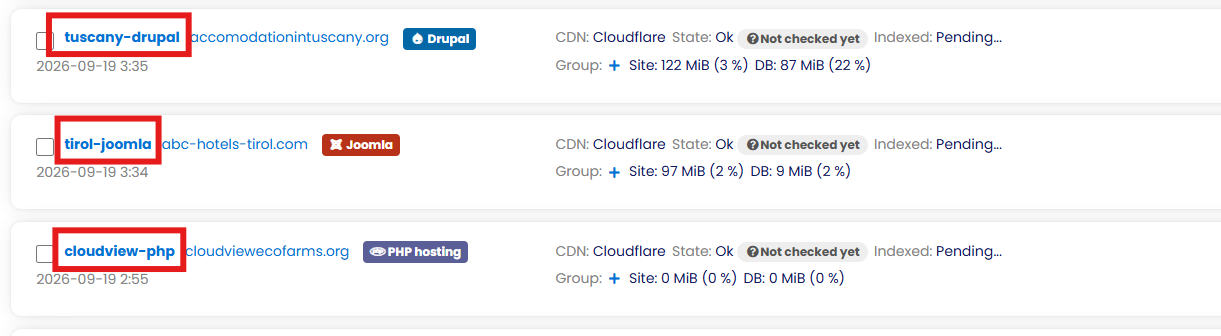
- In your dashboard, click the site name of the domain you want to protect.
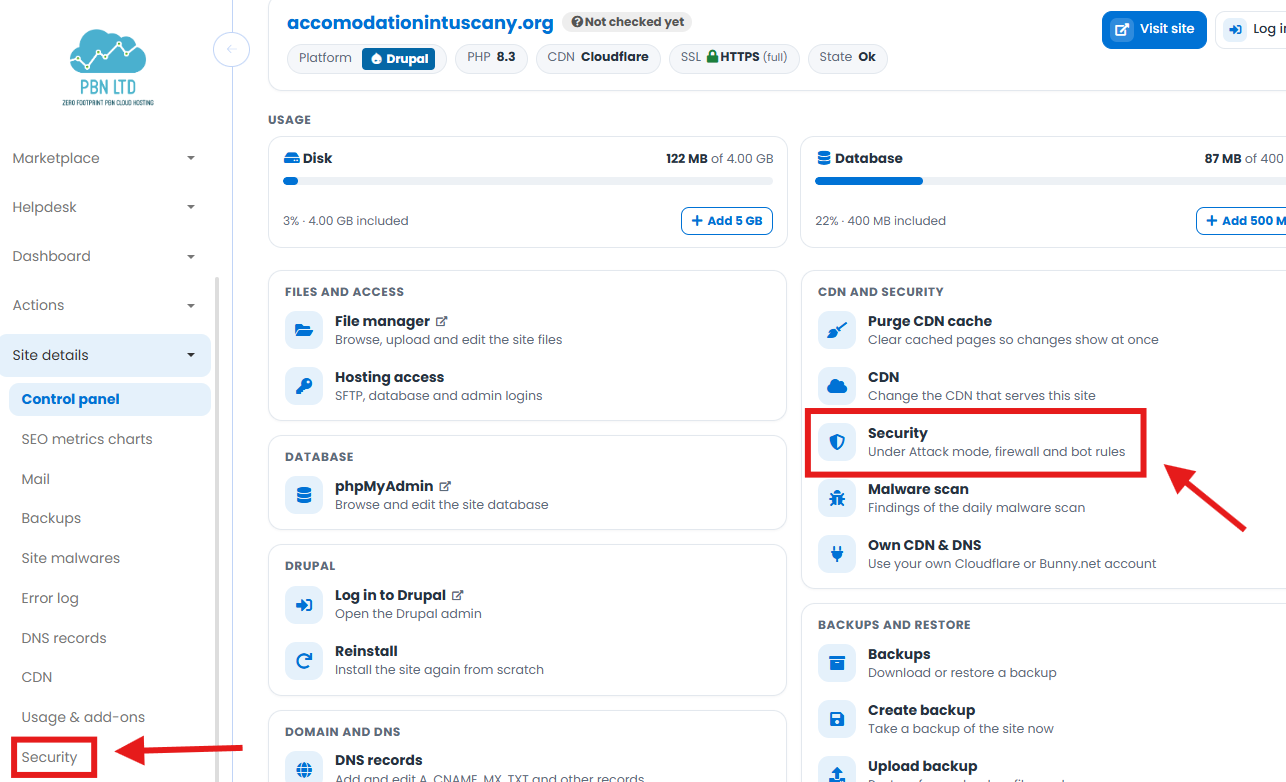
On the site’s Control panel, open Security — either the Security card (Under Attack mode, firewall and bot rules) or Site details → Security in the left-hand menu.
The Security page keeps everything in one place. “I’m Under Attack” mode and firewall rules are Cloudflare features, so you’ll see them on sites served by Cloudflare (our recommended CDN).
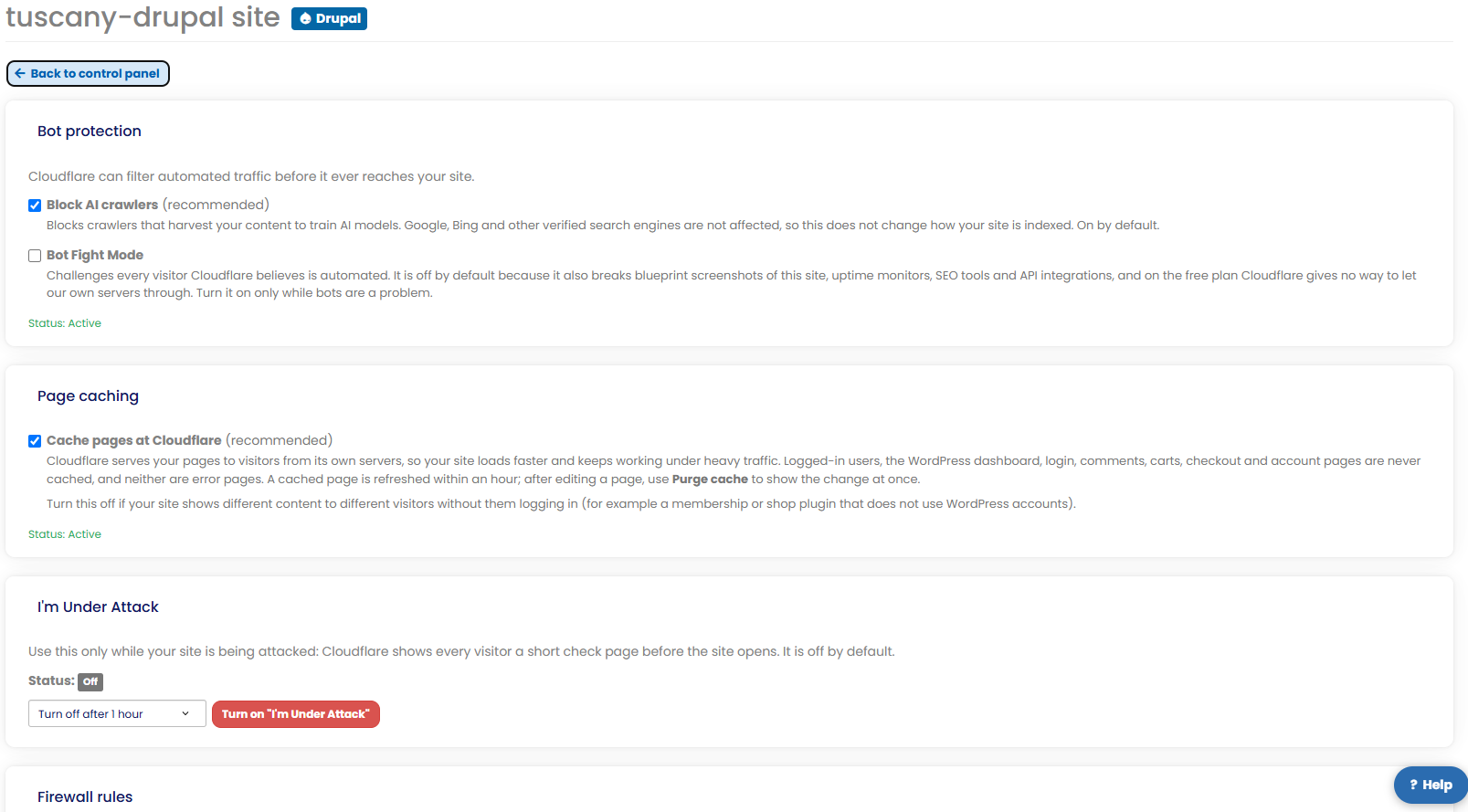
“I’m Under Attack” mode
Your emergency button. Turn it on and Cloudflare shows every visitor a quick check page before your site loads, filtering out the flood. It’s off by default — only switch it on while you’re actually under attack. You can set it to turn itself off automatically after a set time (say, 1 hour) so you never leave it on longer than needed, or set it to stay on until you switch it off yourself.
Firewall rules
Block or challenge unwanted traffic before it reaches your site. You can add up to 5 custom rules plus 1 rate-limiting rule, and toggle any of them on or off whenever you like. To move fast during an attack, start from a ready-made preset:
- DDoS: challenge everyone except verified bots — the one to reach for during an active attack.
- Block a country — stop all traffic from a specific location.
- Allow only my IP on WordPress admin and login — lock down wp-admin so only you can reach it.
- Rate limit the login page — slow down brute-force login attempts.
Click Add rule to build your own from scratch, or pick a preset and tweak it. Changes apply through Cloudflare automatically, within seconds — and you can turn anything off again just as fast.
Bot protection
The same page has two bot controls. Block AI crawlers is on by default — it stops content-scraping AI bots without affecting Google, Bing or your rankings. Bot Fight Mode is off by default — it challenges anything Cloudflare thinks is automated, so only turn it on while bots are a real problem (it can also block uptime monitors and SEO tools).
Not on Cloudflare yet?
The “I’m Under Attack” button and firewall rules run on Cloudflare, our recommended CDN and by far the strongest free DDoS protection around. If your site isn’t on Cloudflare yet you can switch it over in one click through the ‘CDN’ tab in the dashboard
Full walkthrough: Can I Change the CDN Provider for My Domain? Not sure which to pick? See Which CDN Should I Use?
💡 Either way, you’re covered.
Flood guard protects your site at the server level whatever CDN you use — switching to Cloudflare just adds the hands-on tools on top.
Still being hit hard?
Between Flood guard (automatic) and the Security tab (hands-on), almost every attack is covered. If you’re still seeing something unusually aggressive — or a specific Cloudflare message you don’t recognise (see Common Cloudflare Notices & What They Mean) — reach our team: open a support ticket or use the chat widget on our website, and we’ll take a look with you.
✅ Quick summary
You’re protected automatically: Flood guard detects DDoS/flood attacks, switches on protection for you, emails you, and keeps your site up (just slower) without affecting other sites — so usually there’s nothing to do. For hands-on control, open Site details → Security to use “I’m Under Attack” mode, up to 5 firewall rules + 1 rate limit, and bot protection (on Cloudflare sites). Still stuck? Open a support ticket.