
With two-factor authentication on, signing in needs your password (or a sign-in link) and a six-digit code from an authenticator app on your phone – Google Authenticator, Microsoft Authenticator, 1Password, Authy, Bitwarden or any other. Someone who learns your password still cannot get in.
💡 Keep your recovery codes
When you switch it on you get ten one-time recovery codes. Store them somewhere safe (a password manager, or printed): each one gets you in once if your phone is lost.
What’s in this guide
Switching it on
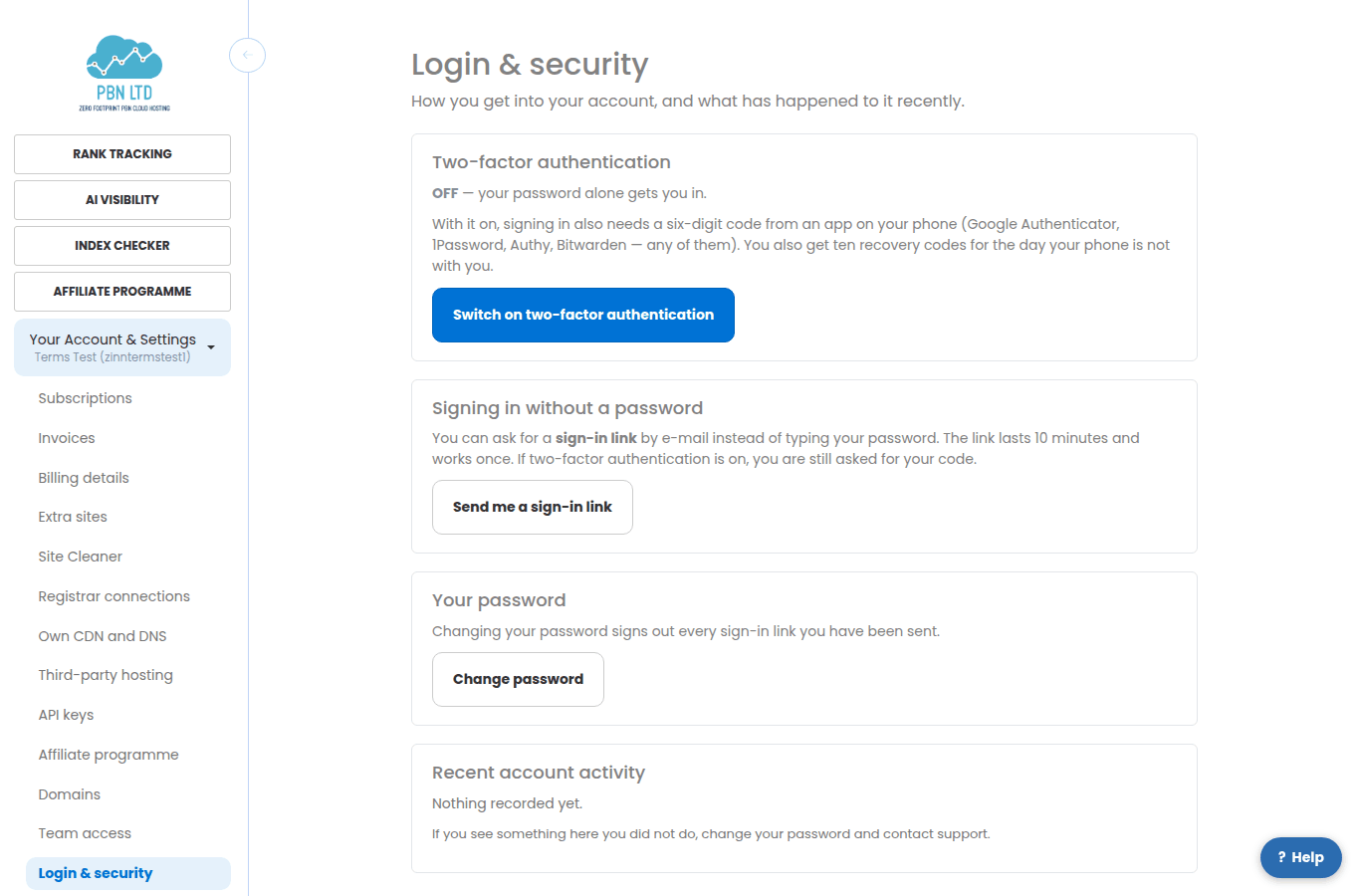
- Open Login & security and press Switch on two-factor authentication and type your password.
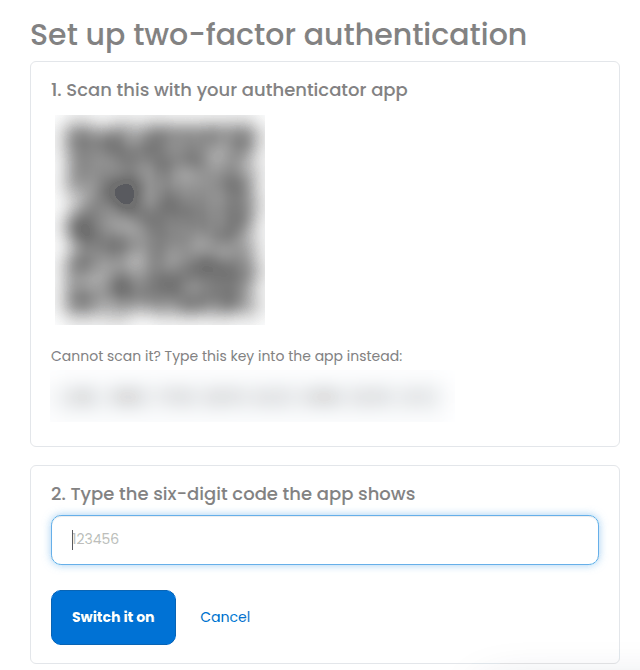
- Scan the QR code with your authenticator app (or type the key shown under it).
- Type the six-digit code the app shows and press Switch it on.
- Save the ten recovery codes that appear next. They are shown once and we cannot show them again.
Signing in with it
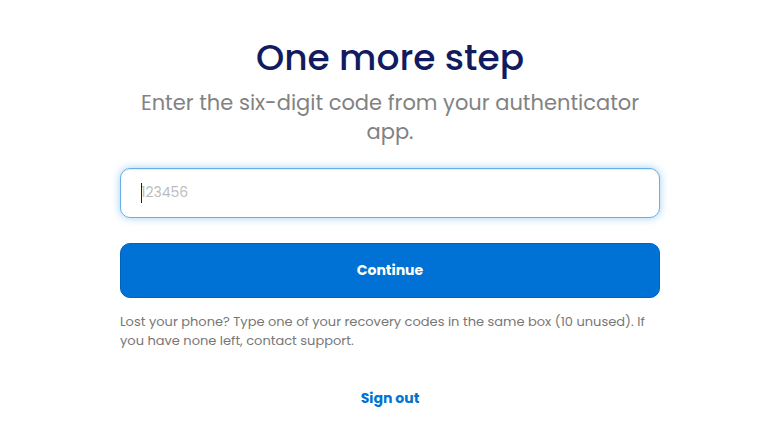
After your password (or sign-in link) we ask for the code. Type the six digits your app shows right now; it changes every 30 seconds, so if one is refused wait for the next and check that your phone’s clock is set automatically. Lost your phone? Type one of your recovery codes in the same box instead – each works once. After five wrong codes the second factor stops answering for fifteen minutes, which is what stops anyone guessing.
Recovery codes, a new phone, switching off
- Used a recovery code? Once you are back in, open Login & security and make a new set of codes.
- New phone: set your authenticator app up again from Login & security.
- Switching it off: Login & security → Switch off, with your password and a current code. Your account then relies on its password alone.
- Lost both your phone and your recovery codes? Contact support. We will ask you to prove who you are; nobody here can see your key or your codes, so there is no shortcut.
- What staff can see: only whether two-factor is on and how many recovery codes you have left.