
If one of your sites goes over a usage limit — its database size, disk space or number of files — we pause it to keep the server healthy for everyone. The good news: you don’t have to wait for us or buy more space straight away. You can switch the site back on yourself for 30 minutes, clear out what’s taking up the room, and it goes back online once you’re under the limit.
💡 Heads-up
This self-unfreeze is only for sites paused because they’re over a usage limit. It gives you a 30-minute window (up to 3 times a day) to tidy up in WordPress, phpMyAdmin or the File Manager. When the window ends we re-check — if you’re back under the limit, or you’ve added space, the site stays online.
How you’ll know your site is paused
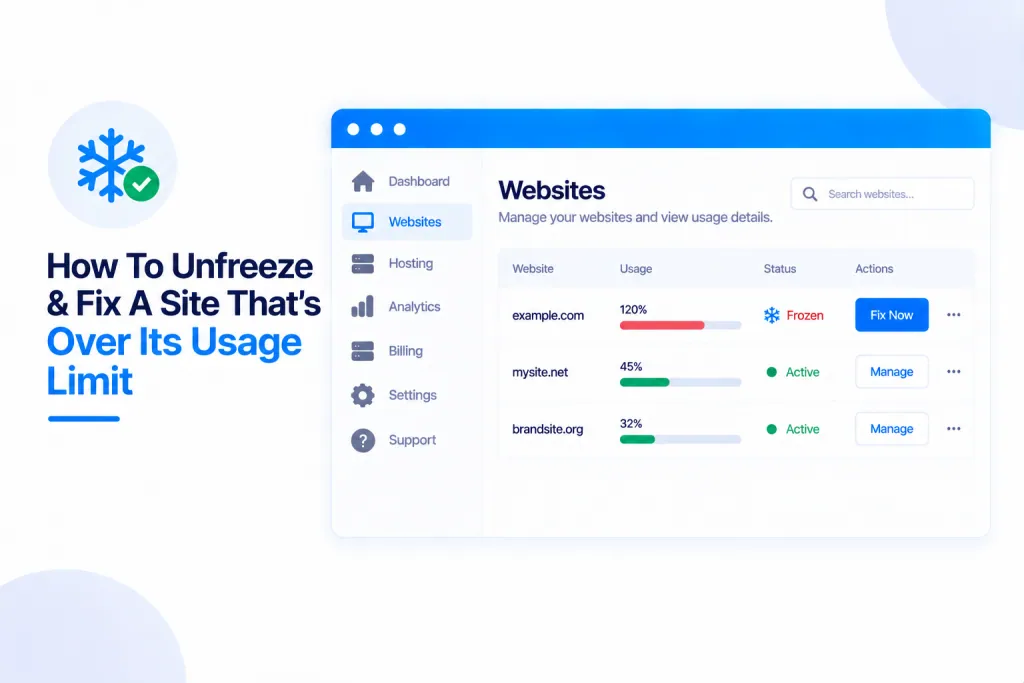
A site that’s over a limit shows as Frozen on your Sites list, with a red note telling you what’s over — for example “Paused: over its database limit” — and the usage figure alongside it (like DB 441 MiB, 110%).

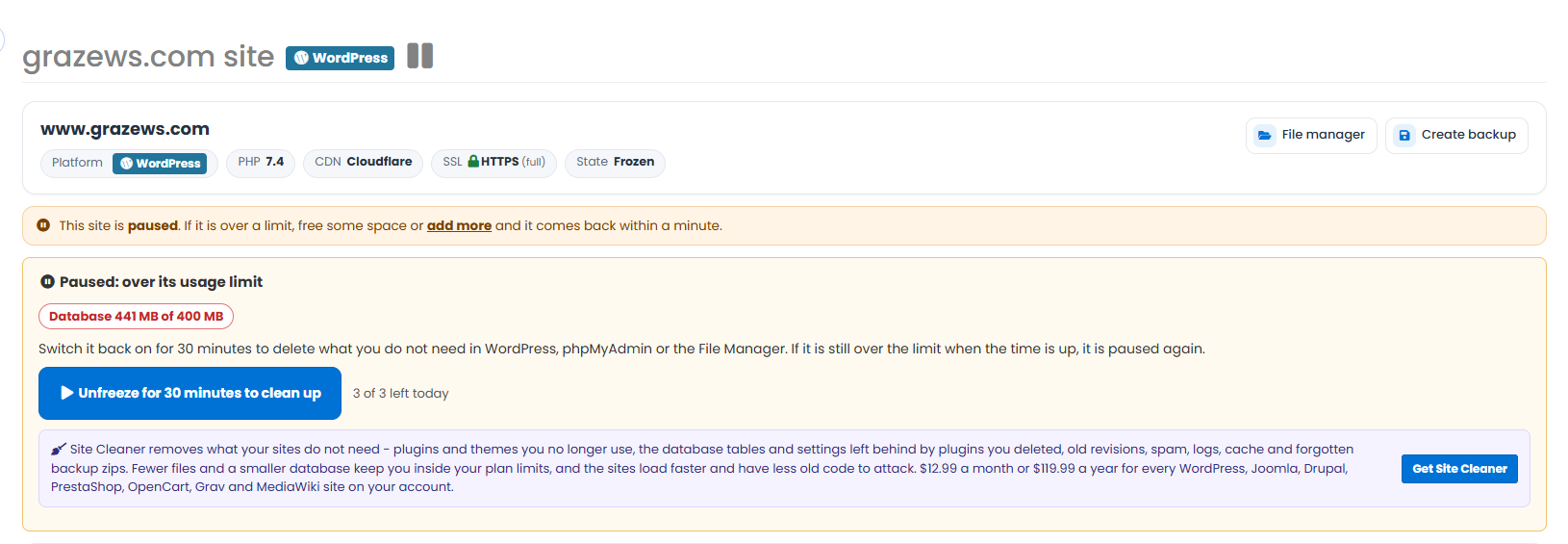
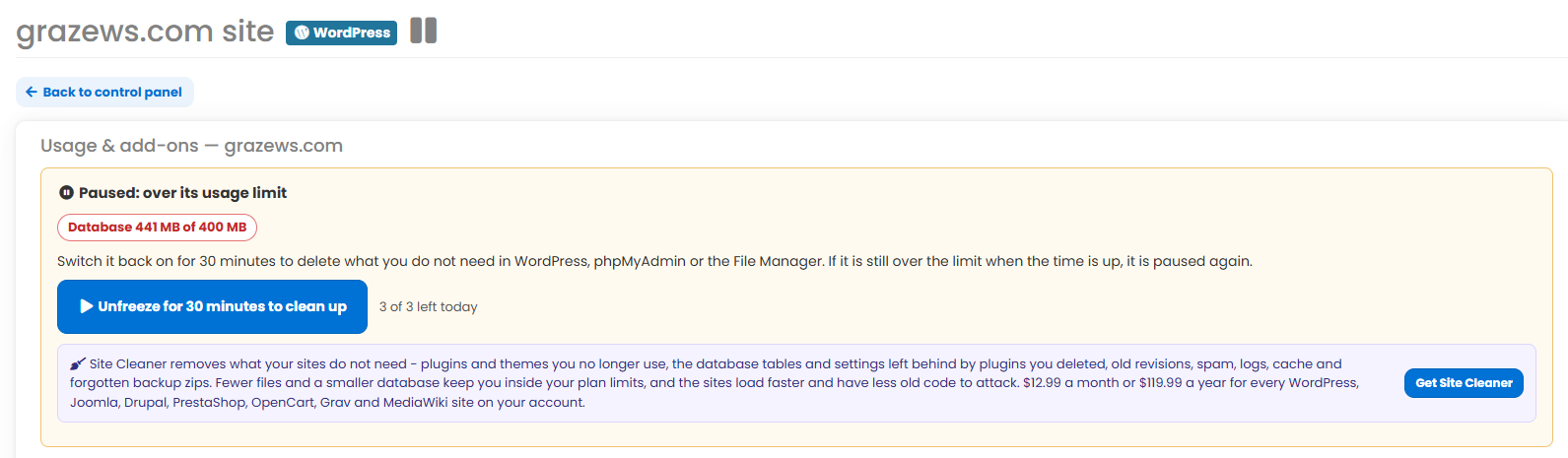
To fix it, click “Add space or see usage” on that card. This opens the site’s Usage & add-ons page, where you’ll find a yellow “Paused: over its usage limit” box showing exactly what’s over (for example, “Database 441 MB of 400 MB”).
You’ll also see it if you open the site itself — click the site name (or Control panel) from your dashboard and the same “This site is paused” banner and unfreeze box are right at the top.
Unfreezing your site to clean it up
In that yellow box, click “Unfreeze for 30 minutes to clean up”. Your site comes straight back online for 30 minutes so you can get in and remove what you don’t need. You get this 3 times per site per day (the count resets at midnight UTC — the box shows “n of 3 left today”).
While the window is running you’ll see a countdown and a Check now button, which re-measures the site within about a minute — handy so you don’t have to wait out the full 30 minutes once you’re done. You’ll also get emails when the window starts, when there are 10 minutes left, and with the result.
What to clear out
Use the 30 minutes to bring the site back under its limit. Depending on what’s over:
- Database too big: delete spam comments, old post revisions, trashed content, and leftover tables from plugins you’ve removed (in phpMyAdmin, or a cleanup plugin).
- Disk or files too high: remove old backups, unused media and files you no longer need (in the File Manager).
The quickest way is Site Cleaner, our add-on that clears exactly this kind of clutter — unused plugins and themes, old revisions, spam, logs, cache and leftover database tables — in one go. You’ll see it offered right there in the yellow box.
When the 30 minutes are up
When the window ends — or the moment you press Check now — we measure the site again:
- If you’re under every limit (or you bought more space during the window), the site stays online.
- If it’s still over, it’s paused again, exactly as before. You can start another window, up to your 3 a day.
Or just add more space
If cleaning up isn’t enough, or you’d simply rather not, you can buy more of whatever you’re short on — database, disk or files — and the site comes straight back online. See Usage & Add-ons – Buy Extra Usage.
✅ Quick summary: If a site is paused for going over a usage limit, you can fix it yourself. On your Sites list click “Add space or see usage”, then “Unfreeze for 30 minutes to clean up” (up to 3 times a day). Clear the bloat in WordPress, phpMyAdmin or the File Manager — Site Cleaner does this in one go — then press Check now or wait for the window to end. If you’re back under the limit it stays online; if not, add more space and it comes right back.