
Short answer: every site you host with us is backed up automatically every day — there’s nothing to set up. You can also take a backup yourself, download any backup, restore one, or upload a backup you already have, all from the site’s Backups area.
💡 Heads-up
Your backups are automatic. We keep the last 7 days, and we always hold on to your last successful backup even if a new one can’t be taken — so you’re never left without one.
Opening your backups
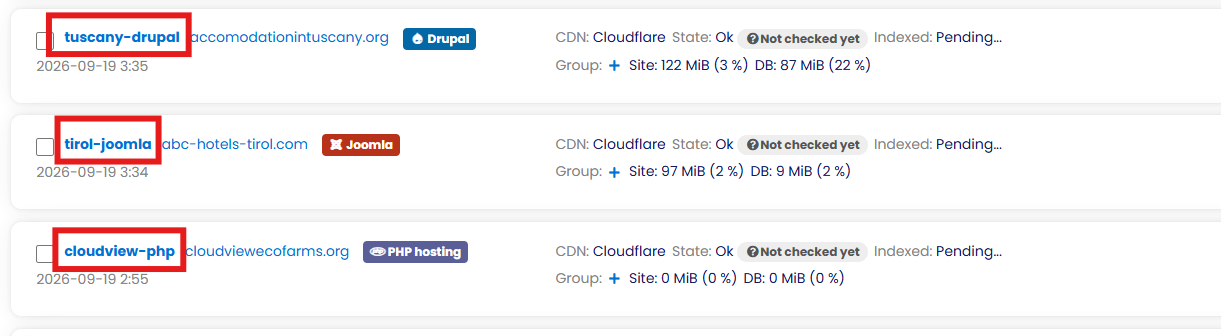
First, open the site from your dashboard by clicking its name.
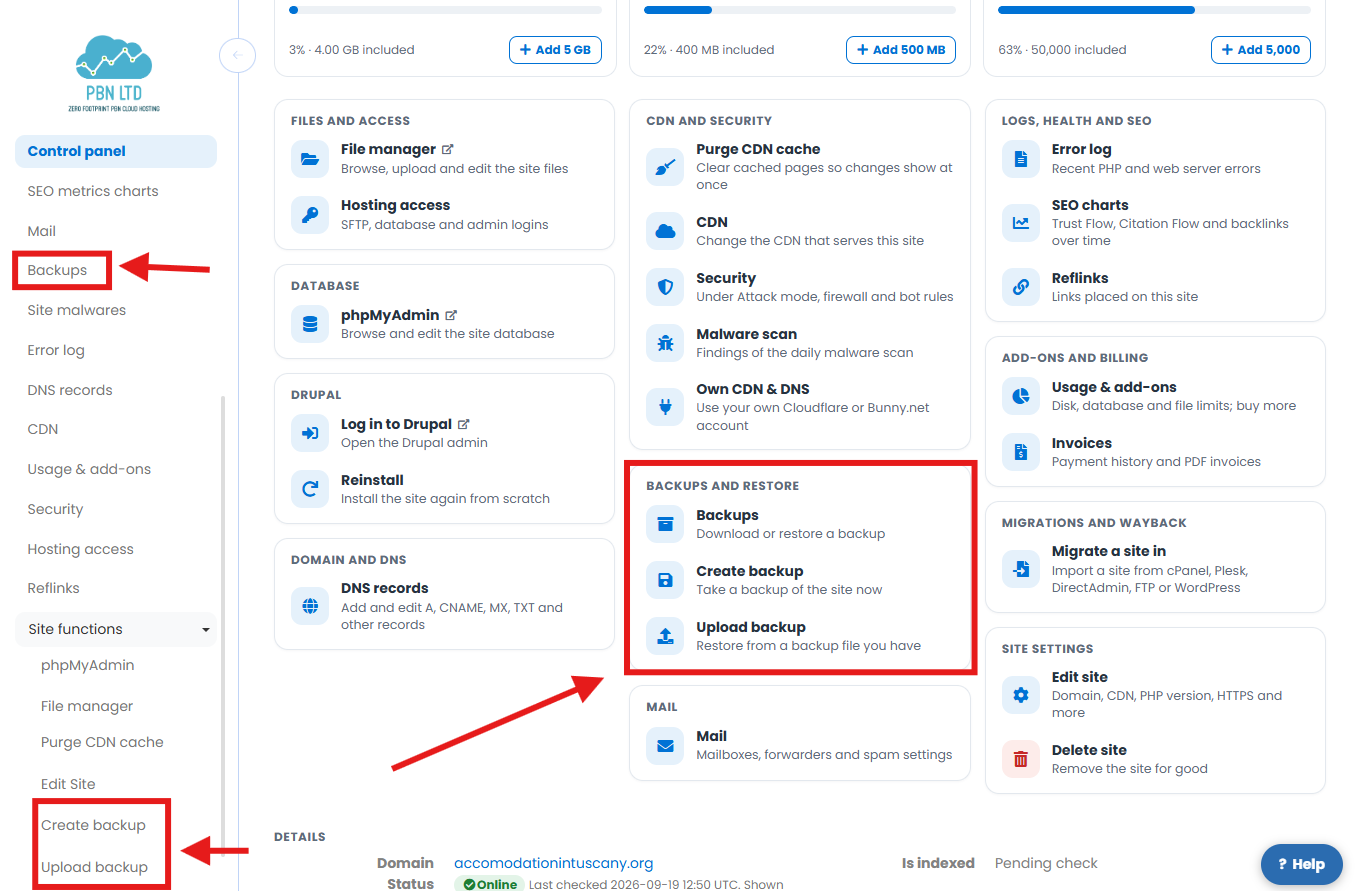
On the site’s Control panel, look under Backups and restore — you’ll find Backups (view, download and restore), Create backup and Upload backup. You can also reach them from Site details → Backups (and Site functions) in the left-hand menu.
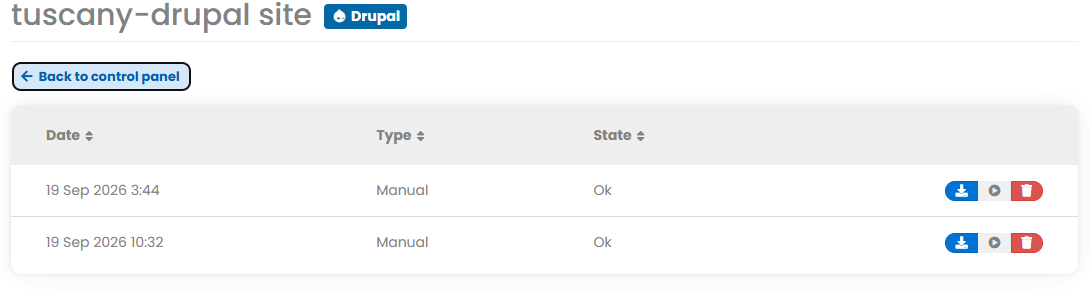
The Backups tab lists every backup for that site — the automatic daily ones and any you’ve taken yourself — with its date, type and state.
Taking a manual backup
Want a fresh backup right now — say, before a big change? Click Create backup (from the Backups and restore card, or Site functions → Create backup) and confirm:
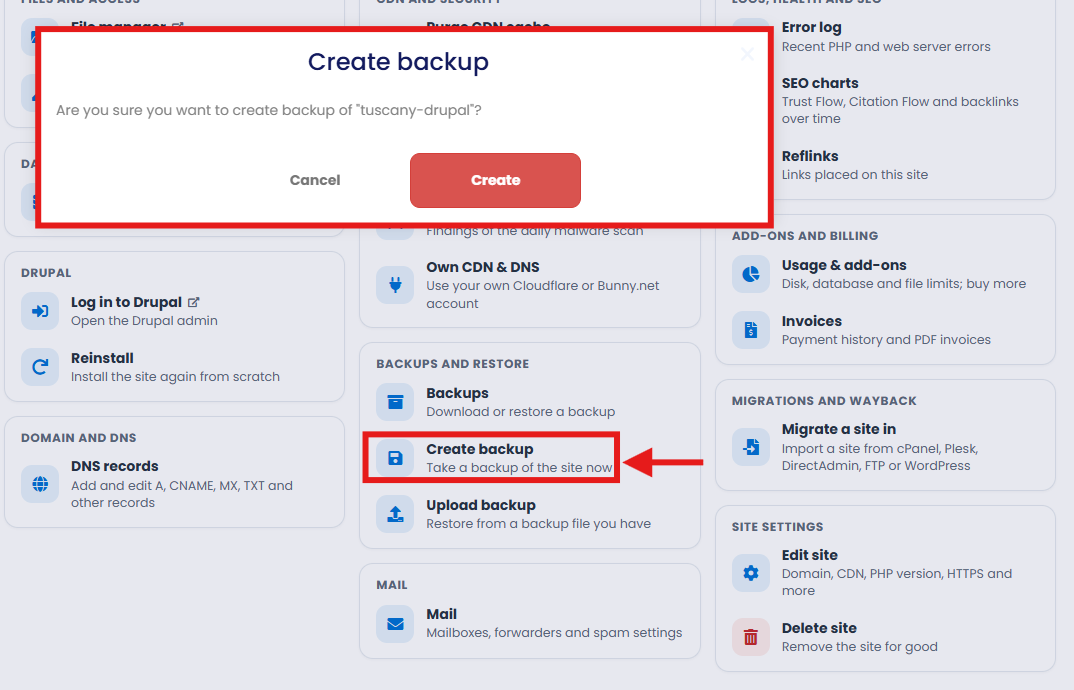
Once it finishes, your new backup appears in the Backups tab alongside the automatic ones, marked as a Manual backup.
Download, restore or delete
Each backup in the list has three buttons on the right:
| Button | What it does |
|---|---|
| Download | Save a copy of that backup to your own computer — handy for keeping a long-term archive. |
| Restore | Roll the site back to exactly how it was when that backup was taken. |
| Delete | Remove that backup from the list. |
⚠️ Restoring overwrites your current site
A restore replaces your live site’s files and database with the ones in the backup — anything added since (new posts, orders, changes) is lost. If in doubt, take a fresh backup first, or download the current state before you restore.
How long backups are kept
We keep your automatic backups for the last 7 days, so you’ve always got a week of recent restore points to choose from.
💡 Your last good backup is always kept
If our system can’t take a new backup for some reason — for example a malware problem or a suspended domain — we hold on to your last successful backup rather than letting it drop off. You’re never left with nothing to restore from.
Want to keep a backup for longer than 7 days? Just download it (see above) and store the file safely on your own computer.
Uploading a backup
Got a backup file of your own — one you downloaded from us, or another PBN LTD backup you want to bring in? Click Upload backup (from the Backups and restore card, or Site functions → Upload backup), choose your file and hit Submit.
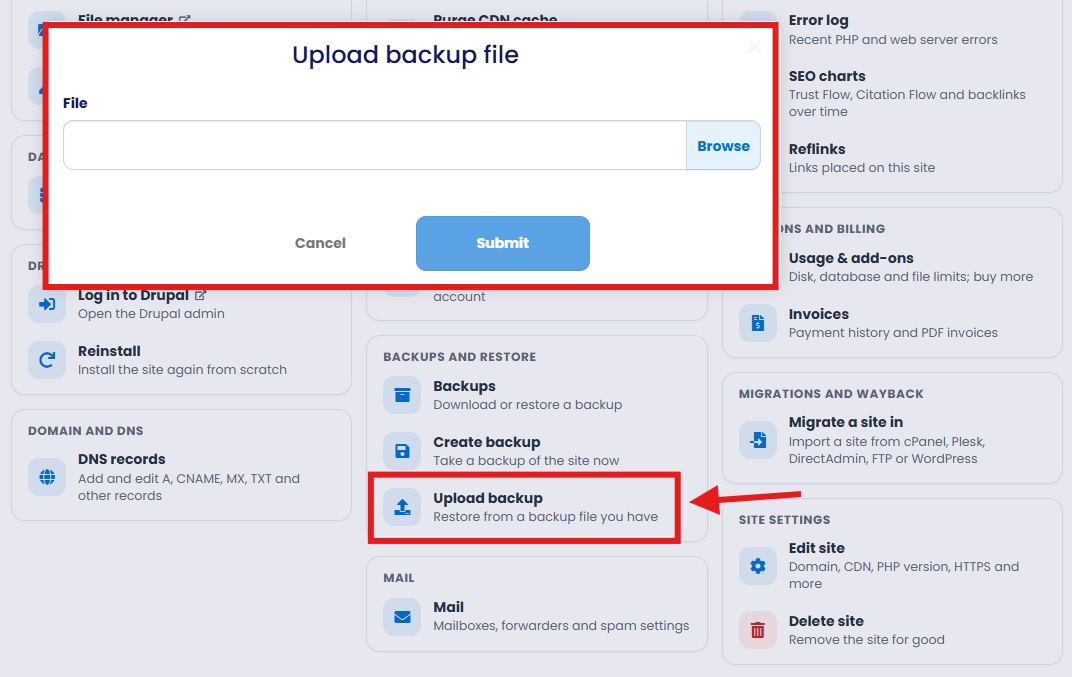
⚠️ .tar.gz files only
Our system only accepts backups in .tar.gz format. If your file isn’t a .tar.gz it simply won’t upload — so use a backup taken from PBN LTD (downloaded with the button above).
Moving a whole site in from another host? The Migrate a site in tool is usually the easier route — see How To Migrate Your Site To PBN LTD.
When a backup can’t be taken
A daily backup needs your site to be live and reachable on our servers. A backup may be skipped if:
- Your domain is still Waiting DNS update — backups start once DNS points at us and the site is set up.
- The domain has expired, or its nameservers were pointed away from us.
- The site is paused or suspended (for example a malware or billing issue.
In every one of these cases, your last successful backup is kept, so you always have something to restore once the site is back.
FAQs
How often are automatic backups taken?
Once a day, automatically, for every site you host with us — WordPress, Joomla, Drupal, PHP and static HTML sites all included.
How many backups can I see?
The last 7 days of automatic backups, plus any manual ones you’ve taken — and we always keep your last successful backup on top of that.
What format do uploaded backups need to be?
.tar.gz only. Any other format won’t upload.
Can I download a backup to keep?
Yes — use the download button on any backup to save it to your computer for as long as you like.
Not sure which backup to restore, or something not working as expected? Open a support ticket and we’ll help you sort it.
✅ Quick summary
Open a site’s Control panel → Backups and restore. Every site is backed up daily and automatically; the Backups tab shows the last 7 days plus any you take with Create backup. Each backup can be downloaded, restored or deleted, and you can bring in your own with Upload backup (.tar.gz only). We always keep your last successful backup, even if a new one can’t be taken.