
Short answer: both File Manager and phpMyAdmin open in one click from your site’s control panel — with no separate login to type. Use File Manager to browse and edit your site’s files, and phpMyAdmin to manage its database.
💡 Heads-up
Always open these from the control panel buttons — they log you in automatically. You never need to type a database username or password by hand.
Opening them from your control panel
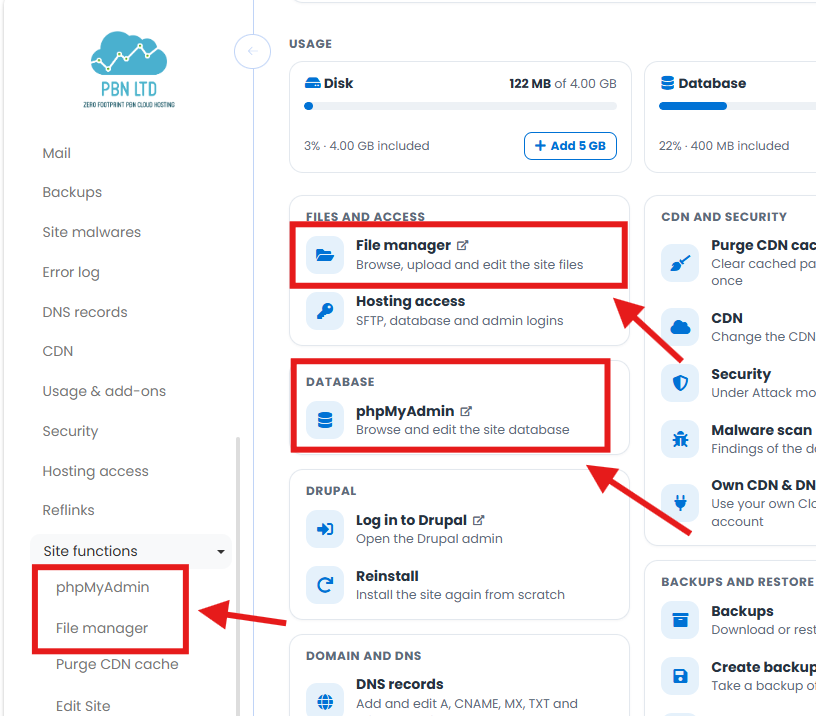
Open the site from your dashboard (click its name) to reach its Control panel. Both tools are right there, and each opens in a new tab:
File Manager
Under Files and access, click File manager — or use Site functions → File manager in the left-hand menu. It lets you browse, upload, edit and delete your site’s files right in the browser.
phpMyAdmin
Under Database, click phpMyAdmin — or Site functions → phpMyAdmin. It opens straight into your site’s database, already logged in.
💡 Always use the button
phpMyAdmin only opens from your control panel. If you go to it directly and type a database password by hand, you’ll see “Please open phpMyAdmin from your control panel” — just use the button and it logs you in for you. (Need SFTP or database credentials for an outside tool? They’re on the Hosting access card.)
What each tool is for
File Manager — anything to do with your site’s files:
- Edit configuration files like .htaccess or wp-config.php
- Upload, download or replace files
- Deactivate a broken plugin or theme by renaming its folder
- Check what’s actually on the server
phpMyAdmin — anything to do with your site’s database:
- Change your site URL or fix a redirect loop
- Reset a WordPress admin password
- Clean up or repair database tables
- Run a specific SQL query when the site’s own admin won’t let you
Before you make changes
These tools give you direct access to the files and database that run your site — which also means a mistake takes effect instantly.
⚠️ Changes are live and immediate
A bad SQL query or a wrong file edit can take your site down straight away, with no undo. Before you change anything, take a fresh backup — see How To Access Your Automatic Backups — so you can roll straight back if you need to.
Troubleshooting
It won’t open, or says no access
Always open it from the control panel button, not a bookmarked link. If it still won’t open, your site may be paused or suspended
phpMyAdmin opens but no database is selected
Pick your database from the list on the left — it’s usually the only one shown.
I can’t see .htaccess or wp-config.php
They’re hidden files — turn on show hidden files (dotfiles) in File Manager to see them.
I made a change and my site broke
Don’t panic — restore your most recent backup and you’ll be back to exactly how it was.
FAQs
Do I need a username and password?
No — both open in one click from the control panel and log you in automatically.
Can I connect over FTP/SFTP instead?
Yes — the Hosting access card has your SFTP, database and admin logins for connecting an outside tool.
Do these work for non-WordPress sites?
Yes — File Manager works for any site, and phpMyAdmin is there for any site that has a database (WordPress, Joomla, Drupal or a PHP app).
Still not sure, or something’s not behaving? Open a support ticket and we’ll help you out.
✅ Quick summary
Open the site’s Control panel: File manager is under Files and access and phpMyAdmin is under Database (both are under Site functions too). Each opens in a new tab, already logged in — no password to type. They’re powerful, so take a backup before making changes, and if anything breaks, restore it.